- App Store
- ASO
- Discovery
App Store In-App Events: how to set one up and get found
App Store In-App Events step by step: where events appear, badges, limits, media sizes, deep links, review, analytics and event ideas for small indie apps.
AppRanker team14 min read

On this page
App Store In-App Events are cards for timely things happening inside your app: a challenge, a competition, a premiere, a major update. Once App Review approves one, it shows on your product page and in search results, and it can be picked for the Today, Games and Apps tabs. People who do not have your app can download it straight from the event card, and people who do can tap Open and land on the event inside it.
For an indie developer this is one of the few free discovery surfaces on the App Store that does not depend on your size. Google Play's equivalent is gated behind install thresholds most small apps never reach; Apple's is open to any app with an approved version. This guide covers where events appear, the limits and badges, which ideas pass review, the App Store Connect steps, media specs, a metadata checker you can run before submitting, and how to read the results. It follows Apple's In-App Events page and the App Store Connect help.
Key takeaways
- Events can run 15 minutes to 31 days, and you can publish them up to 14 days before they start.
- You can have 10 events published and 15 approved per app at a time, and submit events without a new app version once the app is approved.
- The event name is 30 characters, the short description 50 and the long description 120. Specific prices get an event rejected.
- A sale, a daily reward or a general "check out our app" message is not an event. A time-limited moment with new content, a goal or a premiere is.
- Analytics show impressions, page views, reminders, opens and downloads for each event, once it has driven five first-time downloads.
What App Store In-App Events are and where they appear
Apple describes events as "timely events within apps and games, such as game competitions, movie premieres, livestreamed experiences, and more." An event has a card (an image or video, the event name and a short description) and a details page (a longer description and a note if an in-app purchase is required). According to Apple, events appear:
- On your product page, which "displays all of your currently published events."
- In search. "When users search for an app, the event card appears along with your app for users who have downloaded your app, while screenshots show for those who haven't downloaded your app. Users can also search for In-App Events directly."
- On the Today, Games and Apps tabs, "in editorially curated selections and personalized recommendations."
- In Apple Games. Apple's current help pages describe events as discoverable "on the App Store and Apple Games."
Two behaviours make events useful for growth. Someone without your app "can download it directly from your In-App Event card or event details page," and anyone can "opt in on the event card and event details page to receive a notification from the App Store when your event starts." That reminder is a free re-engagement message Apple sends on your behalf.
Why In-App Events matter more for small apps
On Google Play, the comparable feature is promotional content. As our guide on how to get featured on Google Play explains, Google's premium growth tools page makes it available to all games, but apps must meet large metric thresholds (one baseline includes 1.6 million active installs), and new app titles cannot use it at all.
Apple sets no such bar. If your app has an approved version, you can create events. For an app that ranks for few keywords, an event card is one more way into search results, on the product page and in front of editors, and it works for apps, not just games.
In-App Event limits and badges
| Rule | Limit |
|---|---|
| Event length | At least 15 minutes, at most 31 days |
| Publish before start | Up to 14 days |
| Published events per app | 10 |
| Approved events per app | 15 |
| Drafts | 50 |
| Overlapping events (approved or draft) | 10 |
| Different start times by region | All within 48 hours of each other |
| Reference name (internal) | 64 characters |
| Event name | 30 characters, title case |
| Short description | 50 characters, sentence case |
| Long description | 120 characters, sentence case |
Every event carries one of seven badges, shown above its title. Apple's definitions, condensed:
| Badge | Use it for |
|---|---|
| Challenge | Reaching a goal before the event ends, such as a fitness challenge |
| Competition | Competing for the highest ranking or rewards, such as a tournament |
| Live Event | Something everyone experiences at the same time, such as a live match or concert |
| Major Update | Significant new features or content, beyond UI tweaks or bug fixes |
| New Season | New content building on established content, such as a battle pass |
| Premiere | New content or media released for the first time |
| Special Event | Limited-time events the others do not cover, such as a collaboration |
ASO agency Gummicube lists an event that does not clearly fit one of Apple's types among the most common rejection causes, so pick the badge after you have written down what changes in the app during the event.
Is your idea an In-App Event?
Apple lists challenges, competitions and special content launches as good candidates, and three things as poor ones: "repetitive activities such as daily tasks or rewards," "price promotions that add no new content, features, or goods," and "general app-awareness promotions." An event "may highlight permanent or ongoing content," but it "should focus on a related limited-time moment or experience."
Most indie apps are not games and have no live ops team, but many still have real events:
- Habit and fitness apps: a 30-day challenge with its own badge or theme (Challenge).
- Learning apps: a new course or lesson pack going live (Premiere).
- Productivity and utility apps: a big release, such as widgets or a Mac version (Major Update).
- Apps with a community: a monthly leaderboard or a photo contest (Competition).
- Seasonal apps: a holiday content pack that builds on your existing one (New Season). Our holiday app marketing plan shows how to time one around December.
If you cannot say what is new or time-limited inside the app, it is a promotion, not an event. Put the message in your promotional text instead.
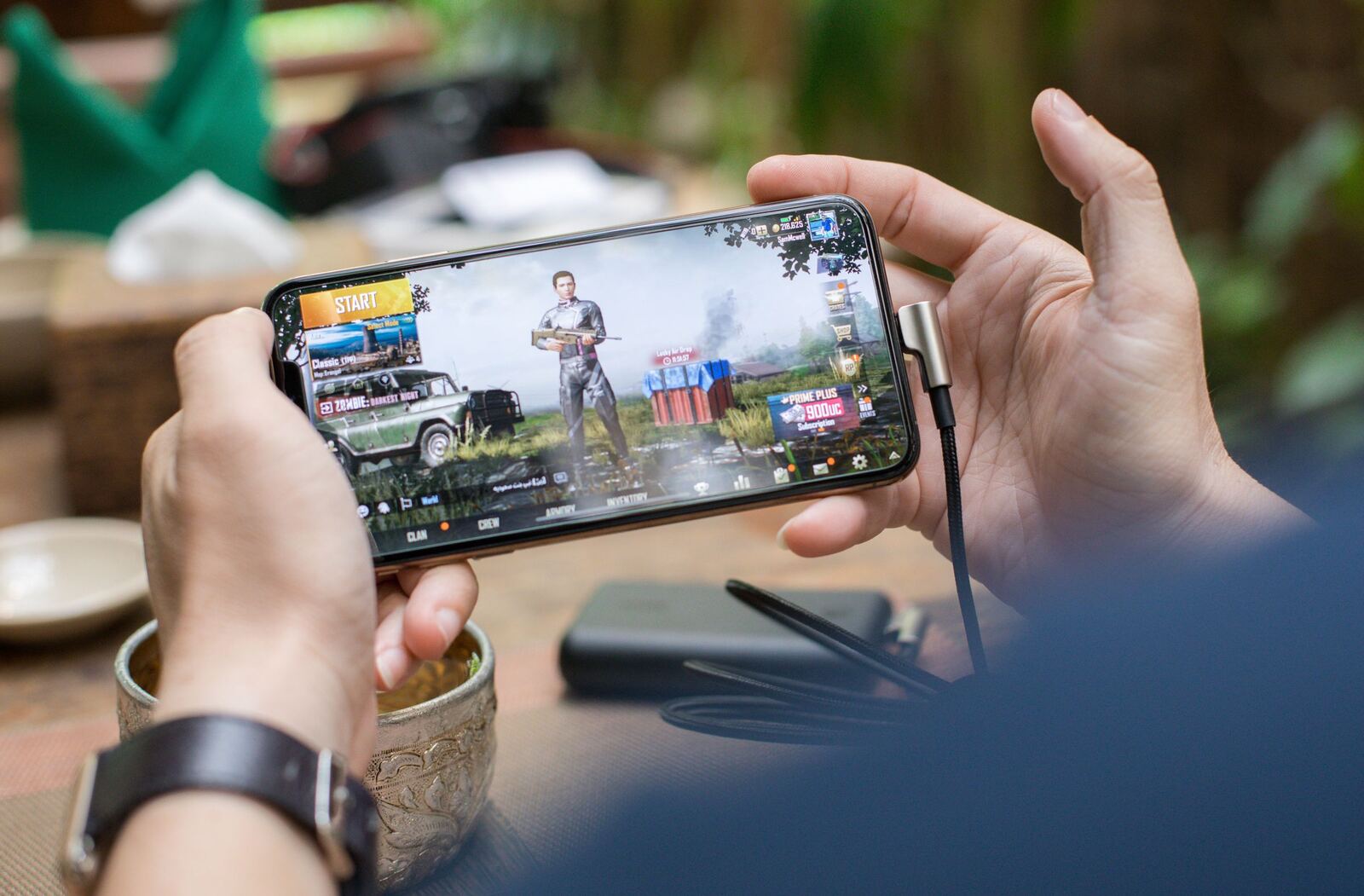
Events reward apps that already have something happening inside them: a goal, a new season, a premiere. Photo: I'm Zion / Pexels
How to create an In-App Event in App Store Connect
You need the Account Holder, Admin, App Manager or Marketing role.
- Open your app, click In-App Events in the sidebar, then Create In-App Event.
- Enter a reference name (internal, up to 64 characters) and click Create.
- Enter the event name, short description and long description.
- Upload media for the event card and the event details page, or pick approved assets with Browse Assets from your Asset Library.
- Choose a badge.
- Add localizations for every language your listing supports.
- Under Country or Region Availability, set the start and end dates and times and the publish date and time. The publish date is when the card appears, up to 14 days before the start. Use Customize Dates and Times for regional start times.
- Add the event deep link, the purpose, the priority and whether an in-app purchase is required, then the primary language. Click Save.
Deep link, purpose and priority
- Deep link. This is where Open takes the user. Apple recommends a universal link "for security," says to avoid URL shorteners and redirects, and suggests testing it by pasting it into Notes and tapping it. Before the event starts, link to a page that builds anticipation; for new users, consider onboarding first, and "always provide a way for users to return to your main app experience."
- Purpose. Choose from appropriate for all users, attract new users, keep active users informed, or bring back lapsed users. It is not shown publicly; Apple uses it for personalized recommendations, while published events stay discoverable by everyone.
- Priority. Events on your product page are ordered by start time; High priority events appear ahead of Normal ones.
- In-app purchase. Mark it only if the event itself needs a purchase. For subscription apps, mark it only when the event costs extra beyond the subscription.
Event media that passes review
| Media | Format | Aspect ratio | Size |
|---|---|---|---|
| Event card image | .jpg, .jpeg, .png | 16:9 | 1920x1080 to 3840x2160 px |
| Event card video | .mov, .m4v, .mp4 | 16:9 | 1920x1080 to 3840x2160 px, 30 or 60 fps |
| Details page image | .jpg, .jpeg, .png | 9:16 | 1080x1920 to 2160x3840 px |
| Details page video | .mov, .m4v, .mp4 | 9:16 | 1080x1920 to 2160x3840 px, 30 or 60 fps |
Apple's design rules: avoid text or logos in the media, "especially your event or app name," do not add borders or gradients (the App Store applies crops and gradients itself), keep the card and details page visually consistent, and make videos loop seamlessly because they autoplay and repeat. Our guide to App Store creative assets covers exporting video that processes on the first upload.
Write event metadata that passes review
Apple's metadata rules for events:
- Name the actual event, such as "June Leaderboard Climb," not a call to action like "Watch the livestream," and avoid generic words for the type of event.
- No all caps, no repeated punctuation, no unverifiable claims such as "the best" or "#1," and no extra words like "game event."
- "Including specific pricing will lead to rejection by App Review."
- Do not use the description to promote the app or your services.
A rejected event has to be fixed and reviewed again, which can cost days of its promotion window. This Node.js script checks a JSON list of events against the limits and the most common mistakes before you paste them into App Store Connect:
// check-events.mjs: run with `node check-events.mjs events.json`
import { readFileSync } from 'node:fs';

const LIMITS = { name: 30, shortDescription: 50, longDescription: 120 };
const PRICE = /[$€£¥₹]\s?\d|\d\s?(usd|eur|gbp)\b|\d+\s?%\s?off|\bhalf price\b/i;
const CLAIMS = /#1\b|\bnumber one\b|\bthe best\b|\bbest ever\b/i;
const CTA = /^(download|watch|join|play|get|tap|try)\b/i;

function check(event) {
  const problems = [];
  for (const [field, max] of Object.entries(LIMITS)) {
    const value = (event[field] ?? '').trim();
    const length = [...value].length;
    if (!value) problems.push(`${field}: missing`);
    else if (length > max) problems.push(`${field}: ${length}/${max} characters`);
    if (PRICE.test(value)) problems.push(`${field}: mentions a price`);
    if (CLAIMS.test(value)) problems.push(`${field}: unverifiable claim`);
    if (/[!?]{2,}/.test(value)) problems.push(`${field}: repeated punctuation`);
    if (/\b[A-Z]{4,}\b/.test(value)) problems.push(`${field}: word in all caps`);
  }
  if (CTA.test(event.name ?? '')) problems.push('name: reads like a call to action');
  if (/\b(game|app) event\b/i.test(event.name ?? '')) problems.push('name: drop "game event" or "app event"');
  return problems;
}

const events = JSON.parse(readFileSync(process.argv[2], 'utf8'));
let failed = 0;
for (const event of events) {
  const problems = check(event);
  console.log(`${problems.length ? 'FAIL' : 'OK  '} ${event.name}`);
  for (const p of problems) console.log(`     - ${p}`);
  if (problems.length) failed++;
}
process.exitCode = failed ? 1 : 0;
Run against one good and one bad event on Node 22, it prints:
OK   30-Day Morning Run Challenge
FAIL Download Now: HUGE Winter Sale!!
     - name: 32/30 characters
     - name: repeated punctuation
     - name: word in all caps
     - shortDescription: mentions a price
     - shortDescription: unverifiable claim
     - longDescription: mentions a price
     - name: reads like a call to action
It cannot judge whether your badge fits or whether the event is really time-limited; that part is on you. Run it once per localization, since every language has the same limits.
Submit the event for review
Events "must be approved before they are visible to users." If your app is already approved, you can submit an event "with or without an iOS app version": open the event, click Add for Review, choose a draft submission or a new one, then Submit for Review. Without an app version, the event is reviewed together with the latest version of the platform you pick. If the app has never been approved, the event has to go in the same submission as the first version.
Statuses move from Ready for Review to Waiting for Review and In Review, then to Approved - Set to Publish (approved, waiting for its publish date), Approved - Published, or Rejected, and finally Past. Submit at least a few days before the publish date; our guide on how long App Store review takes has current timings. If an event is rejected, the reason and guideline are in App Store Connect, and a metadata fix does not need a new build.
Measure what an event did
App Store Connect Analytics has an In-App Events dashboard under Acquisition. Data for an event appears "once it has received at least 5 first-time downloads."
| Metric | What it counts |
|---|---|
| Event Impressions | Views of the event card and details page on the App Store and Apple Games |
| Event Page Views | Views of the event details page |
| App Opens | Times users opened your app from the event card |
| Reminders | Taps on the reminder button, minus cancellations |
| Notification Taps | Taps on the notification that the event is starting |
You can also filter downloads, usage and sales by event to see what happened after someone installed from a card, and segment by territory, source type and device. Compare each event's first-time downloads against the same days before it ran, and read our App Store Connect analytics guide for how source types are counted.
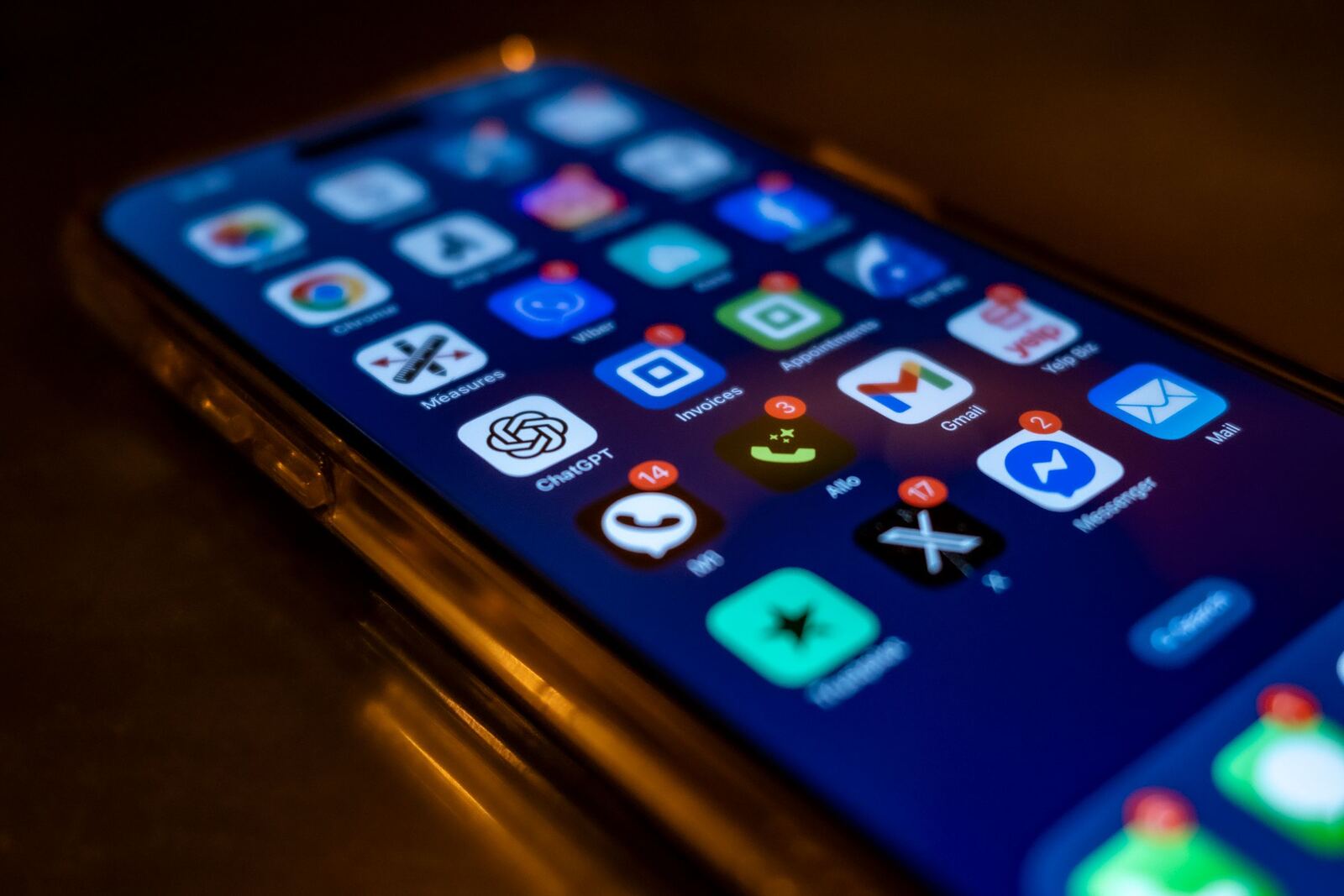
Reminders turn an event card into a notification Apple sends for you when the event starts. Photo: dumitru bumbu / Pexels
Plan events as a calendar, not a one-off
Events work best as a rhythm. With up to 10 published at once, a small team can keep one event visible most of the year:
- Publish 14 days early every time. Two weeks of a card on your product page and in search costs nothing, and the reminder button collects interest before day one.
- Alternate types. A Major Update in spring, a Challenge in January, a Premiere when new content lands. Repeating the same daily-reward event is exactly what Apple says not to do.
- Link to the event from outside the store. Apple suggests promoting events through "email, advertising, social media, and more" with a link to the event details page. Apple's WWDC21 session Meet in-app events on the App Store explains that you link to the details page "by appending the unique event ID to your app's App Store URL", which developers on the Apple Developer Forums show as an
?eventid=parameter, with the URL listed at the bottom of the event's page in App Store Connect. - Nominate big ones. Apple's editors consider in-app events among the things they highlight. Our guide on how to get featured on the App Store explains the nomination form.
Apple does not list event metadata among its search ranking factors, so treat events as extra placements and a conversion lever, not a keyword trick. Our post on App Store ranking factors covers what Apple does confirm.
Bring outside traffic to the event
An event card only reaches people already on the App Store. The days an event runs are also the best days to send new visitors, because your product page has something fresh on it. On AppRanker, App Store and Google Play apps sit on one public leaderboard where rank is a plain sort on what each listing has paid, and every row links straight to your store page. Paste your App Store link on the AppRanker home page to see the price of each position before you pay, and time the listing to the event window. If you publish other apps, point their users at the event with a placement from our app cross-promotion guide. For free channels to pair with it, see how to promote your app for free.
App Store In-App Events checklist
- The event has something new or time-limited inside the app, and the badge matches it.
- Name (30), short description (50) and long description (120) written, with no prices, claims or calls to action.
- Card media at 16:9 and details media at 9:16, without text, logos or borders; videos loop.
- Universal link deep link tested from Notes, with a pre-start landing state.
- Purpose, priority and in-app purchase requirement set.
- Publish date 14 days before the start; regional start times within 48 hours.
- Every listing language localized.
- Submitted for review several days before the publish date.
- Event link shared in your own channels; featuring nomination for big events.
- Results checked in the In-App Events dashboard after the event.
FAQ
What are In-App Events on the App Store?
They are cards for timely events inside an app or game, such as a challenge, competition, premiere or major update. Approved events appear on the product page, in search results and in curated or personalized spots on the Today, Games and Apps tabs.
How long can an In-App Event run?
From 15 minutes to 31 days. You can publish the event card up to 14 days before the start date, so people can discover it and set a reminder in advance.
Do In-App Events need a new app version?
No, once your app is approved you can submit an event on its own; it is reviewed alongside the latest version of the platform you choose. If the app has never been approved, the event must go in the same submission as the first version.
Can I use an In-App Event for a sale?
Not on its own. Apple says price promotions that add no new content, features or goods are not good events, and including specific pricing leads to rejection. Pair a sale with real new content, or announce it in promotional text instead.
Why was my In-App Event rejected?
Likely causes are a badge that does not fit the event, a specific price in the metadata (which Apple says leads to rejection), a call-to-action name, media with text or logos that Apple asks you to avoid, or an event that is not really time-limited. App Store Connect shows the guideline in the rejection, and metadata fixes do not need a new build.
Do In-App Events help App Store ranking?
Apple does not list event metadata as a ranking factor. Events help discovery in other ways: they appear in search results and can be searched directly, they can be featured, and Apple reports downloads driven by each event.
Image credits
- Cover, three friends playing games on their phones: photo by Afif Ramdhasuma on Pexels, Pexels License. Cropped to 1200x630.
- Playing a mobile game outdoors: photo by I'm Zion on Pexels, Pexels License. Resized.
- App icons with notification badges: photo by dumitru bumbu on Pexels, Pexels License. Resized.