- App Store
- ASO
- iOS
App Store creative assets: sizes, upload and review rules
App Store creative assets are live in App Store Connect: header and search results sizes, video specs, Asset Library upload steps, review rules and fixes.
AppRanker team12 min read
On this page
App Store creative assets stopped being a WWDC promise on October 5, 2026. That day, Apple's App Store Connect release notes announced that "you can now use creative assets to highlight your brand identity, promote seasonal updates, and showcase new app or game across the App Store, including product page headers, search results, and in-app events." For the first time, the top of your product page and your slot in search results can show a brand image or video instead of a row of screenshots.
That makes this the biggest change to App Store visuals since app previews. It also means a competitor's search result can now look very different from yours. This guide gives you the exact sizes, the video settings that process cleanly, the upload and review steps in the new Asset Library, the content rules that get assets rejected, and a checklist to ship your first set. Specs are quoted from Apple's creative assets specifications and asset best practices.
Key takeaways
- Creative assets are optional images or videos for the product page header, search results and In-App Event cards, shown on iOS 27 and iPadOS 27 and later.
- Header: 21:9 at 3840 x 1646 (JPEG or PNG). Search results: 3:2 between 1920 x 1280 and 3840 x 2560. Both also take a 16:9 PNG at 5244 x 2950.
- Videos run 5 to 30 seconds at 30 or 60 fps, loop, and play muted in search results.
- Upload in the Asset Library, check the Preview tool, then submit with a version or on their own once your app has an approved version.
- Every asset must meet a 4+ age rating and leave out prices, URLs, other stores and Apple awards.
What App Store creative assets are
Creative assets are a new kind of App Store media that sits beside your screenshots and app previews rather than replacing them. Apple's best practices page says they "appear across the App Store in iOS 27 and iPadOS 27 and later including your product page, in search results, and when your app is featured." There are three placements:
- Product page header. The image or video at the top of your product page. Apple calls it "the first thing they'll notice" when someone lands on your page.
- Search results. A single image or video that replaces the screenshot strip under your app in the Search tab.
- In-App Event cards. Event card and event detail media now use the same asset system.
They are optional. If you add no search results asset, Apple says "your In-App Events, app previews, and screenshots will appear," exactly as before. Screenshots are still required, and they still do most of the selling once someone scrolls your page. If yours need a refresh first, our App Store screenshot sizes guide lists every current device size, including the iPhone Duo set Apple will require from April 2027.
Creative assets do not change what you rank for. Apple's App Store search page still bases results on "text relevance (matches for your app's title, subtitle, keywords, and primary category), as well as user behavior (downloads, ratings and reviews, and more)." What a better search result asset can change is how many people tap and download once you appear, and downloads feed back into that user behavior signal.
App Store creative assets sizes
All dimensions below come from Apple's specifications page. Images "can't include alpha channels or transparencies."
Images: header and search results
| Placement | Aspect ratio | Size | Formats |
|---|---|---|---|
| Product page header | 21:9 | 3840 x 1646 px | JPEG or PNG |
| Product page header | 16:9 | 5244 x 2950 px | PNG |
| Search results | 3:2 | 1920 x 1280 px to 3840 x 2560 px | JPEG or PNG |
| Search results | 16:9 | 5244 x 2950 px | PNG |
The 16:9 PNG at 5244 x 2950 is accepted in both placements. Apple's templates include a "Universal" file built for that case, and the best practices page encourages "a universal creative asset for your header and search results asset to strengthen brand recognition." One well-made universal asset is the fastest way to get started.
Videos: header and search results
| Placement | Aspect ratio | Size | Frame rate | Length | Formats |
|---|---|---|---|---|---|
| Product page header | 21:9 | 3840 x 1646 px | 30 or 60 fps | 5 to 30 s | .mov, .m4v, .mp4 |
| Search results | 3:2 | 1920 x 1280 px to 3840 x 2560 px | 30 or 60 fps | 5 to 30 s | .mov, .m4v, .mp4 |
Apple adds that videos "are muted by default in search results and can't currently be unmuted," that on the product page people can unmute them, and that "videos loop continuously in both placements." Design for silence first and for a clean loop.
In-App Event media
| Placement | Aspect ratio | Size | Max file size |
|---|---|---|---|
| Event card (image or 15 to 30 s video) | 16:9 | 1920 x 1080 px to 3840 x 2160 px | 500 MB (images) |
| Event details page (image or 15 to 30 s video) | 9:16 | 1080 x 1920 px to 2160 x 3840 px | 500 MB (images) |
Note the different minimum length: event videos must run at least 15 seconds, while header and search results videos can be as short as 5. Our guide to getting featured on the App Store covers when an In-App Event is worth creating in the first place.
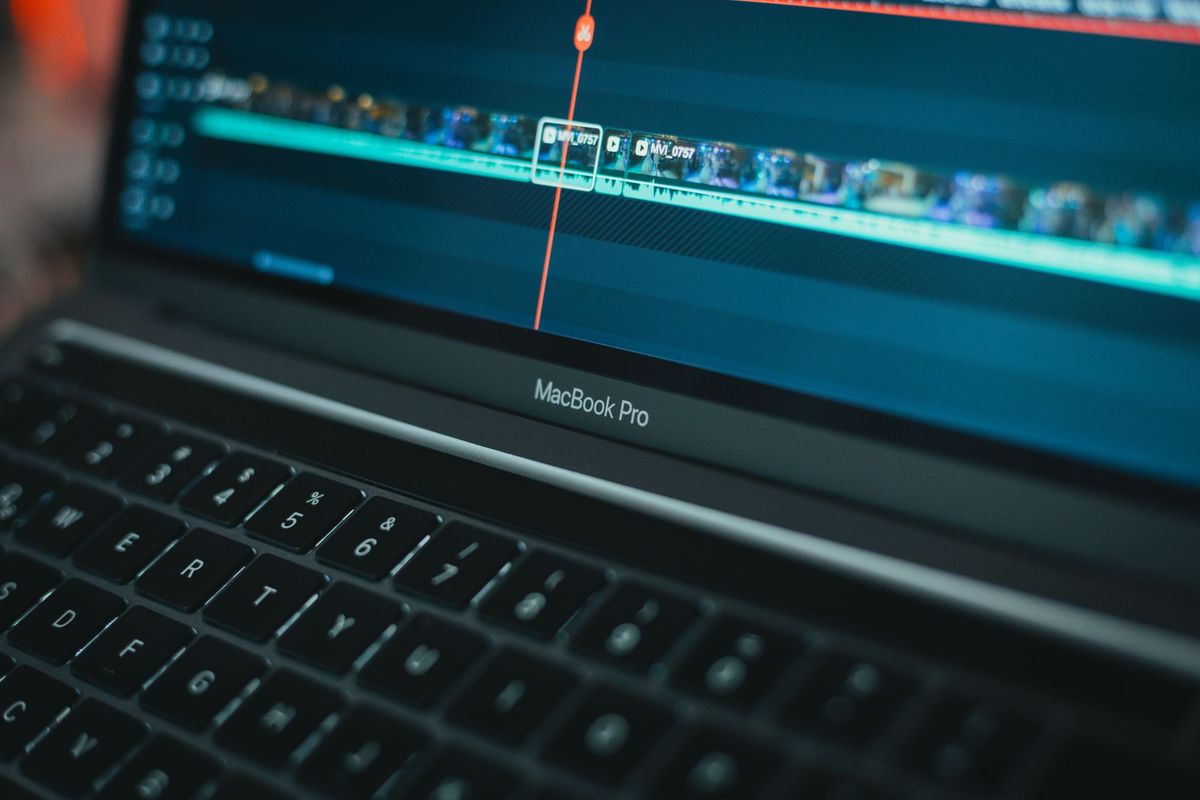
Export the loop at the exact pixel size, with no transparency and no letterboxing. Photo: Moises Caro / Pexels
Exporting video that processes
Apple publishes no bitrate or codec rules beyond the table above, and that gap has already caused trouble. In an Apple Developer Forums thread, a developer reported search results videos that failed with POST_PROCESSING_FAILED in the App Store Connect API. The file was H.264, 3840 x 2560, 30 fps, 16 seconds, with no audio, and only about 2 MB. A reply from another developer (who builds a tool for these videos) said the same settings processed fine in their tests at roughly 38 Mbit/s, and that the obvious difference was bitrate. That is one data point, not an Apple rule, but it is a cheap thing to rule out.
A safe export recipe, based on Apple's specs:
# Search results video, 3:2 at 3840 x 2560, 30 fps, high bitrate H.264
ffmpeg -i master.mov -t 20 -r 30 \
  -vf "scale=3840:2560:force_original_aspect_ratio=increase,crop=3840:2560" \
  -c:v libx264 -profile:v high -pix_fmt yuv420p -b:v 30M -maxrate 40M -bufsize 60M \
  -an -movflags +faststart search-results-3840x2560.mp4
- Keep the length between 5 and 30 seconds (15 to 30 for event media).
- Use exactly 30 or 60 fps. A 24 or 29.97 fps master should be converted, not uploaded as is.
- Fill the frame at the exact size. Do not upload a 16:9 video into a 3:2 slot with black bars.
- Make the first and last frames match so the loop has no visible jump, which Apple's best practices ask for.
- Choose the poster frame on purpose. Apple says the poster frame should be "visually compelling on its own," and you set it per asset in the Asset Library.
Design rules that get assets rejected
Every creative asset goes through App Review, and the bar is stricter than for screenshots. From Apple's asset best practices:
- "Assets displayed on the App Store must meet a 4+ age rating, even if your app's rating is higher."
- "Don't include specific pricing, discounts, website URLs, copyright symbols."
- No "logos or references to other platforms or marketplaces."
- No "Apple-designated recognitions," such as Editor's Choice, App of the Day or Apple Design Award, and no awards your app "hasn't actually received."
- For games with violence, no gore and no weapons "pointed directly at a person or the audience."
Two layout rules matter just as much. Keep the focal point "within the center of your composition to prevent any unwanted clipping," inside the safe area marked in Apple's templates, because the same asset is cropped differently across devices and orientations. And if you use text, Apple suggests "a short phrase that enhances your visual rather than describes it," localized for every language your app supports.
A practical test: cover the app name and ask someone what the app does from the search results asset alone. If they cannot tell, the asset may be beautiful and still lose taps to a competitor whose screenshots show the product. Our earlier analysis of App Store search in 2026 explains why the search results slot is now the one to get right.
How to upload creative assets in App Store Connect
Apple's asset management help page describes two ways in.
Upload to the Asset Library
- In Apps, select your app.
- In the sidebar, click Asset Library.
- Click the add button (+) and choose Upload Creative Assets.
- Choose the files and click Upload.
- Open each asset to give it a name, check the Works With field (which placements it fits), and set a poster frame for videos.
Assets in the library are not tied to a version, so you can prepare and approve a holiday header weeks before you need it.
Place assets on a version
- Select the app version under the platform you are editing.
- Under Product Page Information, open the Header and Search Results tab.
- Click Header or Search Results, then drag in a file or click Browse Assets to pick one from the library.
- Select the asset and click Save.
- Click Preview to see the product page and search results on iPhone and iPad, in each orientation and language.
The same assets can be attached to custom product pages, product page optimization tests and In-App Events.
Use the Preview tool to check how the header sits above your rating, age rating and screenshots on real device sizes. Photo: Bastian Riccardi / Pexels
Submitting creative assets for review
According to Apple's submission help page:
- If your app has no approved version yet, include the assets in the same submission as your first version.
- Once a version is approved, you can submit standalone assets from the Asset Library, with no new build. They are "reviewed together with the latest version of the selected platform."
- To submit, open the Asset Library, click Edit, select the assets (or click Add for Review in the Status column), choose Add for Review, pick or create a draft submission, and click Submit for Review.
- You need the Account Holder, Admin or App Manager role.
- An asset cannot go in on its own if the item it is assigned to is already part of an active submission.
The payoff comes after approval. In its WWDC26 session, "Enhance your presence on the App Store", Apple explained that approved assets can be swapped in without another review, with the example of replacing a summer hiking header with a winter one "without a new submission." Plan seasonal assets early, get them approved, and switch them on the day you need them. Our App Store review time guide covers how long submissions take this year.
One more trap from the same forum thread: after a version with failed video uploads was withdrawn from review, the developer could not delete those assets, and the API returned STATE_ERROR.ASSET_PREVIOUSLY_SUBMITTED_FOR_REVIEW. Apple's help page says assets can only be deleted while their status is Prepared for Submission; otherwise you can Archive them. Check every video has processed before you press Submit.
Custom product pages and testing
Creative assets work well with the two tools you may already use:
- Custom product pages. Apple's WWDC session suggests reusing a campaign banner as a custom product page header, and showing "a tailored asset for different search keywords" on pages that have keywords assigned.
- Product page optimization. You can test a new header or search results asset against your current page before rolling it out. Our App Store A/B testing guide explains how long to run a test and how to read the results.
If you run Apple Ads, creative assets also show up there; see our guide to Apple Search Ads on a small budget before you spend on them.
Your App Store creative assets checklist
- Download Apple's templates and start with one universal 16:9 asset at 5244 x 2950 PNG.
- Keep the focal point and any text inside the template's safe area.
- Remove prices, discounts, URLs, copyright symbols, other stores and award claims.
- Check the asset passes as 4+, whatever your app's age rating.
- Export videos at the exact size, 30 or 60 fps, 5 to 30 seconds, with a clean loop.
- Upload to the Asset Library, set names and poster frames, and wait for processing.
- Attach to Header and Search Results, then check every language in Preview.
- Submit with your next version, or on their own if you already have an approved version.
- Test the new header with product page optimization before localizing it everywhere.
- Prepare and approve seasonal assets ahead of time, then swap them in when needed.
A first impression outside the App Store too
Creative assets make your app look better to people who are already searching the App Store. They do nothing for people who have not opened it yet. A public leaderboard is one low-cost way to reach them: you can list your iOS app on AppRanker, where rank is a plain sort on what each listing has paid and every row links straight to your App Store page. If you ship on Android too, the same visual discipline applies to the Google Play short description and the Google Play feature graphic, and if your Android app sells subscriptions, check the Google Play Billing Library 8 deadline before your next update.
FAQ
What are App Store creative assets?
They are optional images and videos for the product page header, search results and In-App Event cards. They sit alongside screenshots and app previews, appear on iOS 27 and iPadOS 27 and later, and are managed in the Asset Library in App Store Connect.
What size is the App Store product page header?
A 21:9 image or video at 3840 x 1646 pixels, or a 16:9 PNG at 5244 x 2950 pixels. Images cannot contain transparency, and videos must be 5 to 30 seconds at 30 or 60 fps.
What size is the App Store search results asset?
A 3:2 image or video between 1920 x 1280 and 3840 x 2560 pixels, or a 16:9 PNG at 5244 x 2950 pixels. Search results videos play muted and loop.
Do creative assets need App Review?
Yes. They are reviewed with an app version, or on their own from the Asset Library once your app has an approved version. After approval you can switch between approved assets without another review.
What happens if I don't add a search results asset?
Nothing breaks. Apple shows your In-App Events, app previews and screenshots in search results, as it always has.
Do creative assets improve App Store ranking?
Not directly. Apple ranks search results on text relevance and user behavior such as downloads and ratings. A stronger search results asset can raise the share of people who tap and download, and downloads are part of that user behavior.
Image credits
- Cover, graphic designer at an iMac: photo by Jonathan Borba on Pexels, Pexels License. Cropped to 1200x630.
- Video editing on a MacBook Pro: photo by Moises Caro on Pexels, Pexels License. Cropped.
- App Store product page on an iPhone: photo by Bastian Riccardi on Pexels, Pexels License. Cropped.