- App Store
- ASO
- iOS
App Store search in 2026: more ads, Creative Assets and what still ranks your app
App Store search changed in 2026: a second ad slot, Creative Assets in results and keyword-assigned custom product pages. What it means for your ASO plan.
AppRanker team11 min read
On this page
App Store search looks different in the fall of 2026 than it did a year ago. A second paid slot now sits among the organic results. Custom product pages can rank for their own keywords. And Apple has started rolling out Creative Assets: rich images and video that can replace screenshots in search results and at the top of your product page.
Apple says search is where most App Store downloads start: nearly 65 percent of downloads happen directly after a search. So changes to that page matter to every iOS developer, not only to the ones who buy ads. This post covers what changed, what Apple's own documentation says still decides your rank, and a checklist for your next App Store Connect session.
The changes at a glance
| Change | When | What it means for you |
|---|---|---|
| Custom product pages go from 35 to 70, and each can have its own keywords | Announced October 29, 2025 | A custom page can now show up in organic search in place of your default page |
| A second Apple Ads slot inside search results | From March 3, 2026 | The first organic result can sit below two ads |
| Creative Assets and the Asset Library in App Store Connect | Announced June 8, 2026, rolling out in fall 2026 | New images and video for the product page header and search results |
| Social media question in the age rating questionnaire | Added July 2026, required for submissions from September 2026 | Answer it, or your next update cannot be submitted |
More ads between users and your organic rank
For years, an App Store search showed at most one ad, at the very top. In December 2025, Apple Ads announced additional ad placements further down the results. The rollout began on March 3, 2026 in the UK and Japan and reached the remaining Apple Ads markets by the end of March, on devices running iOS or iPadOS 26.2 and later.
The mechanics, according to Apple and the reporting around the announcement:
- Existing search results campaigns became eligible for the new positions automatically. There is no new campaign type to set up.
- Advertisers cannot bid for a specific position. The auction decides whether an ad shows at the top or further down.
- The ad format is the same, and billing is still per tap or per install.
- Relevance still gates everything. Apple's search results placement page is blunt about it: "If your app isn't relevant to what the user is searching for, it won't be displayed — regardless of how much you may be willing to pay."
What it means if you never buy ads
Your organic rank is calculated the same way it was before. What changed is where that rank appears on screen. On a busy keyword, the first organic result can now sit below two ads, and a result in organic position three or four may need a scroll before anyone sees it.
That has three practical consequences:
- Being first matters more than being near the top. The gap between the first organic result and the fourth is wider than it was, because the fourth can now be pushed well down the page.
- Long-tail keywords get more attractive. Specific, lower-volume phrases attract fewer advertisers, so an organic first place there is more likely to be the first thing a user sees.
- Your brand name is worth protecting. If a competitor bids on your app's name, their ad can now appear directly around your own organic listing. Watch your branded searches and decide whether defending them with a small campaign is worth it.
If you do run ads, Apple also added a Maximize Conversions bidding strategy for search results campaigns in February 2026, which automates bidding instead of you managing bids keyword by keyword.
What still decides your organic rank
With all the new surfaces, it is easy to forget that Apple's own description of search ranking is short. The App Store search page says results are based on factors including:
- Text relevance: matches for your app's title, subtitle, keywords and primary category.
- User behavior: downloads, ratings and reviews, and more.
Neither of the 2026 changes adds a new field to that list. Your app name and subtitle (30 characters each) and your 100-character keyword field are still where ranking starts. Screenshot text is not on Apple's list, whatever you may have read about caption indexing, so write captions for the people reading them and keep your keywords in the fields Apple names.
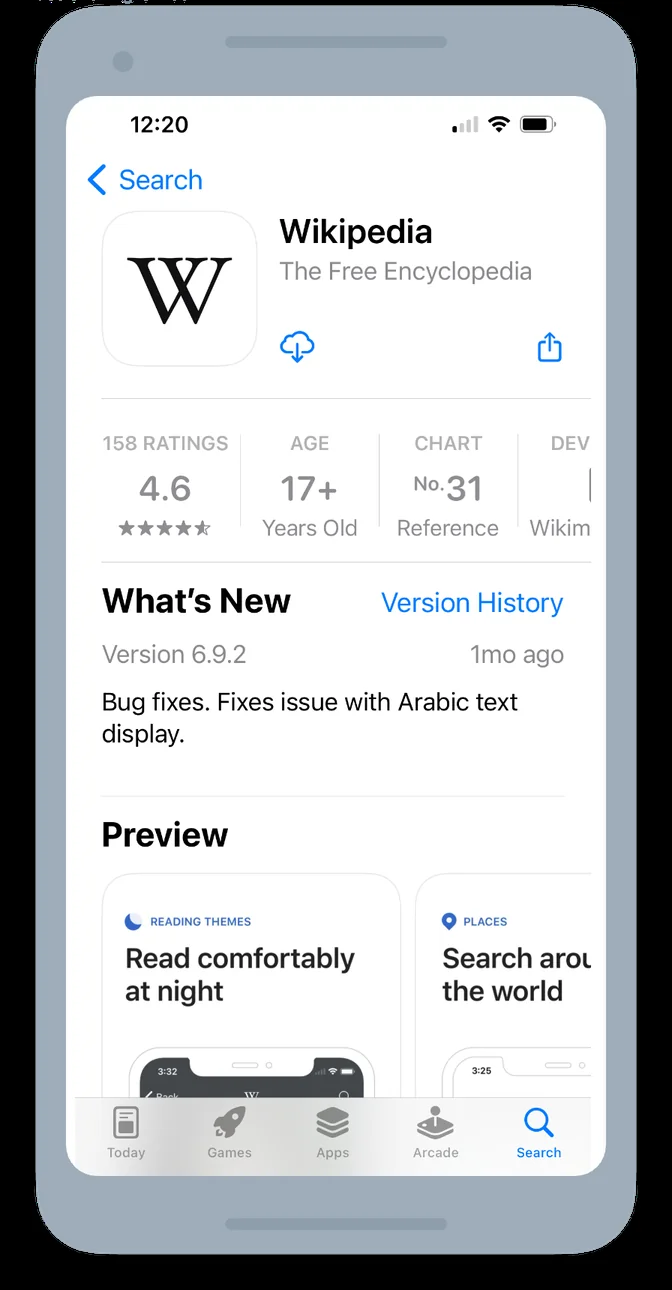
The subtitle is indexed for search; the screenshot captions below it sell the app to the person who is already there. Image: RWambua-WMF, Wikimedia Commons, CC BY-SA 4.0
Getting the keyword field right
Apple's guidance for the keyword field is specific, and still widely ignored:
- Separate terms with commas and no spaces. Spaces inside a phrase are fine:
Property,House,Real Estate. - Do not repeat plurals of words you already have ("climb" and "climbs" count as duplicates).
- Leave out words that are too broad for your app, such as "app" or "game", and filler words like "the" and "to".
- Do not include competitor app names, celebrity names or trademarks you are not authorized to use.
A small script can catch the common mistakes before you paste the field into App Store Connect. This one checks the length, finds spaces after commas, and flags terms that repeat words from your name or subtitle, which only waste characters:
name = "Tidy: Habit Tracker"
subtitle = "Daily goals and streaks"
keywords = "routine,planner,reminder,habits,streak,goal,self care,journal"

terms = [t.strip() for t in keywords.split(",")]
used = {w.lower().strip(":").rstrip("s") for w in (name + " " + subtitle).split()}

print(f"{len(keywords)}/100 characters")
if len(keywords) > 100:
    print("Too long: App Store Connect will reject it")
if ", " in keywords:
    print("Remove the spaces after commas, they count against the limit")
for term in terms:
    overlap = [w for w in term.lower().split() if w.rstrip("s") in used]
    if overlap:
        print(f"'{term}' repeats {overlap} from the name or subtitle")
Run it against each localization you ship. Every locale has its own keyword field, which is 100 more characters per market for anyone willing to translate carefully.
Apple's LLM-generated app tags
The same Apple page lists app tags among what can display in search results, and says they are "generated using LLMs based on your metadata". You cannot write tags directly. What you can do is make your metadata describe your app plainly: a subtitle that says what the app does, a description that leads with the main use case, and a primary category that matches it. Vague, clever copy gives a language model less to work with.
Custom product pages can now rank on their own
On October 29, 2025, Apple doubled the number of custom product pages you can publish, from 35 to 70, and added the ability to assign keywords to each one. A custom product page with keywords can appear in organic search results for those keywords, in place of your default product page.
That turns custom product pages from a paid-traffic tool into an ASO tool. A meditation app, for example, could keep its default page focused on meditation while a second page, assigned "sleep sounds", leads with its sleep features and screenshots.
Apple's rules, from the search documentation:
- The keywords you assign should match the intent of that custom product page.
- Each keyword combination must be unique to a single product page. Two pages cannot claim the same one.
ASO tool vendors report that the keywords offered for assignment come from your app's existing keyword field, so plan the keyword field and the custom pages together rather than one after the other.
A simple way to plan them
- List the three to five distinct reasons people install your app. Use your reviews and your search terms report if you have one.
- For each reason, pick the keywords from your keyword field that express it.
- Build one custom product page per reason, with screenshots that show that use case first.
- Assign each group of keywords to exactly one page, and leave your default page as the fallback for everything else.
- After a few weeks, compare conversion rates for each page in App Store Connect analytics and rework the weakest one.
Creative Assets: new images and video for search results
The biggest visual change of the year was announced at WWDC in June 2026. Creative Assets are rich images and videos that are separate from your screenshots and app previews. According to Apple's What's new page, they can appear:
- in the product page header, at the top of your page;
- in search results, on the App Store and in the Apple Games app;
- on custom product pages, where you can also test them with product page optimization.
Apple told developers on August 5, 2026 to start preparing assets, and says the features roll out this fall. They come with an Asset Library in App Store Connect that holds every image, video, app preview and screenshot in one place, and lets you submit assets for review independently of an app update. A seasonal header no longer has to wait for a new build. A new product page preview tool shows how the header, description, screenshots and search results creative will look before you publish.
Creative Assets can be brand or campaign visuals rather than UI, but in search results they still have to say what the app does at a glance. Photo: NeONBRAND / Unsplash, via Wikimedia Commons, CC0
The rules that catch people out
Apple's asset best practices set a stricter bar than many teams expect:
- Every asset must meet a 4+ age rating, whatever your app's own rating is.
- No prices, discounts, website URLs or copyright symbols in the creative.
- No references to other platforms or marketplaces, and no Apple recognitions such as Editor's Choice or App of the Day.
- Videos autoplay muted and loop, so they must work without sound and loop without a visible jump.
- Localize assets for every language your app supports.
If you provide no search results asset, Apple shows your In-App Events, app previews and screenshots instead, as it does today. So Creative Assets are optional. They are also a new place where a competitor's result can look better than yours on the same search page.
Should you make them now?
For most apps, yes, but start small:
- Make one header and one search results asset for your default product page, in your main language.
- Keep the message identical to your subtitle, so the visual and the indexed text say the same thing.
- Use product page optimization to test the new header against your current page before rolling it out to every locale.
- Reuse the approved assets in your custom product pages and, if you run them, Apple Ads campaigns.
One policy deadline to check this month
Alongside the discovery changes, Apple updated the age rating questionnaire. Since July 2026 it asks whether your app includes social media capabilities, and from September 2026 you must answer that question to submit new versions or updates. Apps that say yes get a minimum age rating of 13+ and a Social Media content descriptor on their product page. It takes a minute, but a missing answer will block your next release.
Your App Store search checklist for fall 2026
Organic basics
- Keyword field under 100 characters, no spaces after commas, no plurals of words you already have.
- No words in the keyword field that already appear in your app name or subtitle.
- Subtitle states what the app does in plain words.
- Primary category matches your main use case.
- Keyword fields filled in for every localization you ship.
Custom product pages
- One page per distinct install reason, each with screenshots that lead with that use case.
- Keywords assigned to each page, with no combination claimed twice.
- Conversion rates compared per page after a few weeks.
Creative Assets
- One header and one search results asset prepared, 4+ safe, with no prices or URLs.
- Videos checked with the sound off and on loop.
- A product page optimization test planned before a full rollout.
Ads and policy
- Branded search terms checked for competitor ads.
- Social media question answered in the age rating questionnaire.
Beyond App Store search
Everything above is about the App Store's own search page, where Apple decides the order. It is worth having at least one place where the order is plain. A store listing that converts well is the foundation for both, and our guide to writing a store listing that converts goes through the name, icon, description and screenshots in order.
On AppRanker, an iOS app's rank is a plain sort on what each listing has paid, and every row links straight out to your App Store page. If you are planning a launch or a big update around the new Creative Assets, our launch-week visibility checklist covers lining up the links, and you can paste your App Store link on the home page to see what a place on the board costs today.
FAQ
Do the new App Store search ads push my app down the organic ranking?
No. Organic rank is calculated as before. What changed is the layout: on searches where advertisers compete, up to two ads can now appear, one at the top and one further down, so an organic result may sit lower on the screen than its rank suggests.
Can I choose which ad slot my Apple Ads campaign uses?
No. Existing search results campaigns are eligible for both positions automatically, and the auction decides where an ad appears. You cannot bid for a specific slot.
Does Apple index the text in my screenshots?
Apple's documentation lists your app's title, subtitle, keywords and primary category as the text relevance factors for search. Screenshot captions are not on that list, so keep your keywords in those fields and write captions for conversion.
Can a custom product page rank in organic search?
Yes. Since October 2025 you can assign keywords to each custom product page, and it can then appear in search results for those keywords in place of your default page. Each keyword combination can belong to only one page.
When can I upload Creative Assets?
Apple announced them in June 2026 and says they roll out in fall 2026, through the new Asset Library in App Store Connect. If you do not provide any, your screenshots and app previews keep appearing in search results as before.
Image credits
- Cover, iPhone home screen: photo by freestocks.org, via Wikimedia Commons, CC0. Cropped to 1200x630.
- Wikipedia app product page: image by RWambua-WMF, via Wikimedia Commons, CC BY-SA 4.0. Cropped and resized.
- iPhone held up against a grey wall: photo by NeONBRAND, originally on Unsplash, via Wikimedia Commons, CC0. Resized to 1600px wide.