- iOS
- App Store
- Discovery
Siri AI developer preview: how to bring your app to Siri
The Siri AI developer preview opens App Intents to every iOS app. Tool intents, entity descriptions, Spotlight indexing, app skills, testing and timing.
AppRanker team13 min read
On this page
The Siri AI developer preview opened to every developer on November 3, 2026. Until now, the new Siri could only act inside apps whose features fit one of Apple's predefined App Intents domains, such as messaging or journaling. From the iOS, iPadOS, macOS and visionOS 27.3 betas, any app can hand Siri its own custom actions and content, and people can ask for them in plain language: "change my ride pickup to a new address", "are the sneakers I liked on sale?".
That makes Siri a new way for people to reach your app without opening it, and an early-mover window for the apps that do the work first. This guide covers what Apple announced, the four code changes that bring an app into Siri AI, how app skills guide Siri through multi-step tasks, how to test while the preview is limited to internal builds, and a checklist to finish before App Store submission opens in the spring. Everything here comes from Apple's announcement and the Siri AI Developer Preview documentation. Apple says the API "may change" during the preview, so treat the code as a starting point.
Key takeaways
- The preview starts with the 27.3 betas of iOS, iPadOS, macOS and visionOS. Apple says the features ship to customers "in a few months", and App Store submission opens in the spring.
- You need no new entitlement and no separate program. You update your existing App Intents code.
- Mark the actions Siri may run with
@AppIntent(.tool), give every intent, parameter and entity property a title and a description, and put your entities in Spotlight.- App skills are Markdown files in a
Skills.skillsbundlethat tell Siri how several tools fit together. The body is limited to 10,000 characters.- During the preview, Siri AI only works with development builds and internal TestFlight testers, not external testers or the App Store version.
What Apple announced on November 3
The announcement, titled "Siri AI is now open to all developers", makes three changes for third-party apps:
| Change | What it means for your app |
|---|---|
| Custom actions through App Intents | Siri can run actions that fit no system schema, such as checking a delivery or booking a table |
| Skills | You can teach Siri to combine several of your actions into one experience |
| Spotlight entities | Siri can surface any entity in the Spotlight semantic index, "not only those that fit an existing schema" |
Apple is also rolling Siri AI out across its own apps, including Calendar, Mail, Maps, Messages, Photos and Safari, so users will learn to expect it. The limits matter for planning:
- It requires a device that supports Apple Intelligence, set to English, French, Japanese, Korean, Portuguese or Spanish.
- It is currently unavailable in the EU on iOS, iPadOS and watchOS, and to users under 13.
- Some server-side features have daily usage limits, and Apple says it will share terms and usage policies later.
Apple is running two Apple Intelligence group labs for questions: November 4 at 9 a.m. PT and November 5 at 6 p.m. PT, both linked from the announcement.
When Siri can reach your app
The documentation is precise about when a request reaches your app, and it is the part most worth understanding before you write code. Siri finds custom content and runs custom actions without people mentioning your app while:
- your app is in the foreground,
- one of your Live Activities is active, or
- the person continues a conversation in the Siri app that already mentioned your app.
In every other case, your app is in the background and the person has to name it: "Hey Siri, are the sneakers I liked in app name on sale?". Siri can also move content between apps, for example finding a favourite product in one app and sending it to a contact with a messaging app.
Two practical consequences follow. First, your app's name now has to work out loud. A name people can say and Siri can recognise is worth more than it was a year ago, which is one more reason to follow the checks in our guide on how to name an app. Second, Live Activities become an entry point: an app with a running Live Activity gets requests without being named.
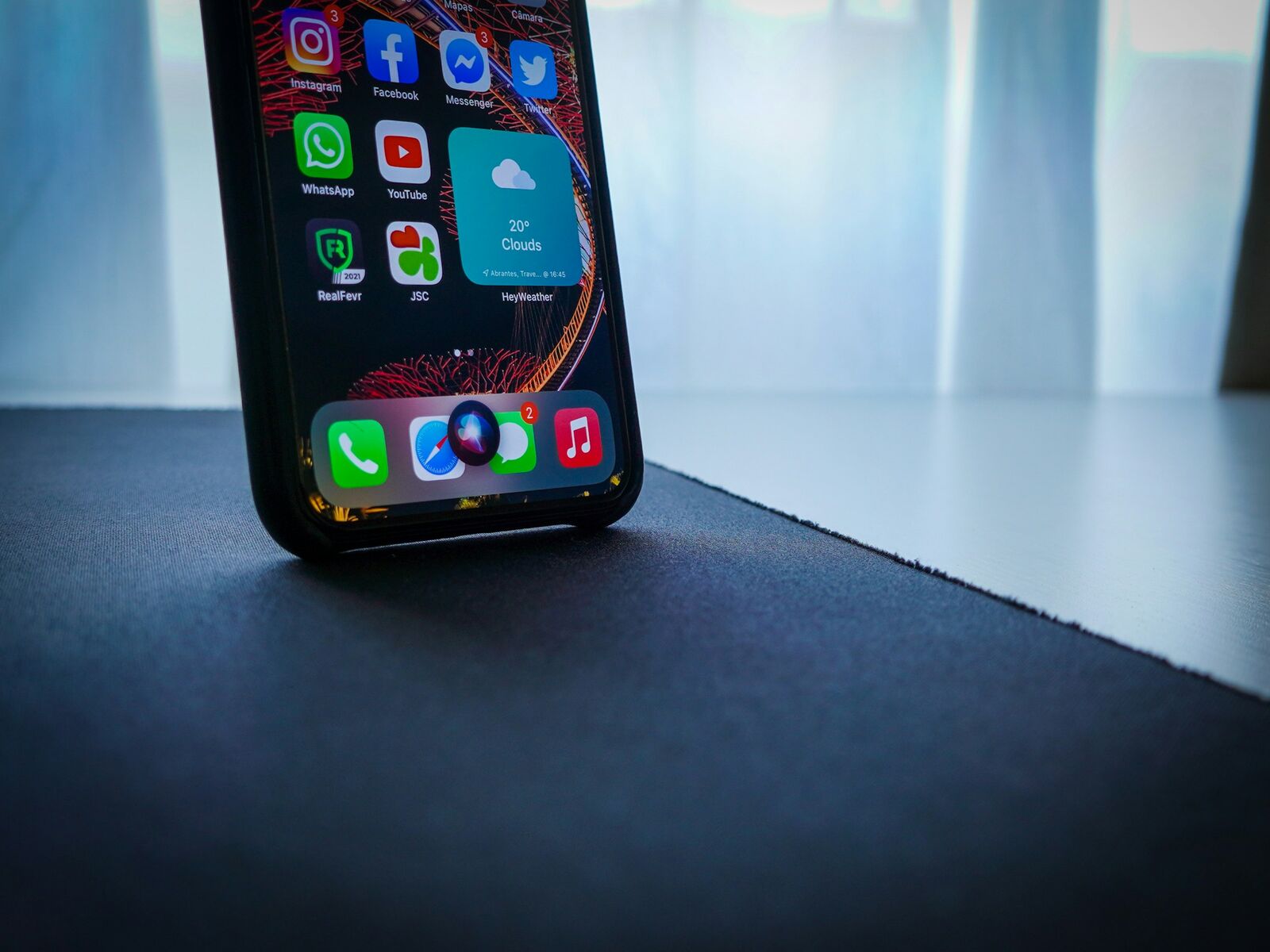
In the background, Siri AI only reaches your app when people say its name. In the foreground or with a Live Activity running, they do not have to. Photo: Miguel Tomás / Unsplash
Step 1: Turn your key actions into tool intents
Siri "can only perform actions you make explicitly available". To make an App Intent available, add the @AppIntent(.tool) macro, which conforms the intent to ToolIntent. Which intents you expose is up to you; Apple suggests your app's key functionality and anything people would want to do by voice.
Here is a tool intent for a habit tracker. The shape follows Apple's shopping cart example in Bringing custom actions and content to Siri:
import AppIntents

@AppIntent(.tool)
struct LogHabit: AppIntent {
    static let title: LocalizedStringResource = "Log Habit"
    static let description = IntentDescription(
        LocalizedStringResource("Marks a habit as done for today and updates the streak.")
    )

    @Parameter(title: "Habit", description: LocalizedStringResource("The habit to mark as done"))
    var habit: HabitEntity

    @Parameter(title: "Note", description: LocalizedStringResource("An optional note for today's entry"))
    var note: String?

    func perform() async throws -> some IntentResult {
        try await HabitStore.shared.log(habit.id, note: note)
        return .result()
    }
}
Three rules from Apple's documentation decide where the macro goes:
- Already on a Siri schema? If the intent conforms to a schema in a domain that supports Siri, such as
sendMessage, do not add.tool. It is already available to Siri. - On a schema that supports only Shortcuts? Use both: replace
@AppIntent(.journal.createEntry)with@AppIntent(.tool, schema: .journal.createEntry). - No real action? A
WidgetConfigurationIntentthat only configures a widget has noperform()work, so it cannot be a tool.
The title and description are not decoration. Siri uses them to understand what the intent does and to tell it apart from your other intents, and the parameter titles and descriptions tell Siri how to fill them in. Write them in your users' words, the same way you would write keywords for search; our guide to free ASO keyword research shows how to collect those words from reviews and search terms.
Step 2: Describe your entities, and protect what is private
Siri also needs to understand your content. Give every @Property, @DeferredProperty and @ComputedProperty on your app entities a description, and decide what Siri may say out loud:
import AppIntents
import CoreSpotlight

struct HabitEntity: AppEntity, IndexedEntity {
    static let typeDisplayRepresentation: TypeDisplayRepresentation = "Habit"
    static let defaultQuery = HabitQuery() // your EntityQuery, not shown

    let id: UUID

    @Property(title: "Name", description: "What the person calls this habit, such as Morning run.")
    var name: String

    @Property(title: "Current streak", description: "Days in a row the habit has been completed.")
    var streak: Int

    @Property(
        title: "Private note",
        description: "A note the person wrote when creating the habit.",
        authenticationPolicy: .requiresAuthentication
    )
    var privateNote: String

    @Property(title: "Sync token", visibility: .internal)
    var syncToken: String

    var displayRepresentation: DisplayRepresentation {
        DisplayRepresentation(title: "\(name)", subtitle: "\(streak)-day streak")
    }
}
By default, entities need no authentication before Siri or Shortcuts present them. For anything sensitive, set an IntentAuthenticationPolicy on the property or, with a static authenticationPolicy, on the whole entity. Apple notes that a property-level policy only covers Siri's responses: if the intent's own result returns sensitive data, require authentication on the intent. Properties that only matter inside your app, like the sync token above, take visibility: .internal, which hides them from Siri, Shortcuts and other system features.
When people describe something that does not exist yet, such as "an economy flight from San Francisco to Los Angeles next Friday", Siri can fill the entity straight from the request if you mark it @AppEntity(.generable) and conform it to TransientAppEntity. Every property of a generable entity must itself be a generable type.
Step 3: Put your entities in Spotlight
To match a request to your content, Siri has to find it, and the main way it finds entities is the Spotlight index. Apple's guide to making app entities available in Spotlight needs two changes. Conform the entity to IndexedEntity, as above, and index your entities in a named index:
import CoreSpotlight

func indexHabits(_ habits: [HabitEntity]) async throws {
    try await CSSearchableIndex(name: "Habits").indexAppEntities(habits)
}
Apple asks you to use a named index rather than the default one, which is for prototyping. Calling indexAppEntities(_:priority:) again with an entity whose identifier is already indexed updates the entry instead of duplicating it. To index a property's value, pass an indexingKey (an existing Spotlight key such as \.contentDescription) or a customIndexingKey to the property macro. If you already index CSSearchableItems, you can attach entities to them with associateAppEntity(_:priority:) instead of rewriting your Spotlight code.
Entities you do not index can still be found through an EnumerableEntityQuery, and parameters with a DynamicOptionsProvider.
Step 4: Give Siri context and behavioural cues
The last pieces help Siri resolve vague requests:
- Onscreen context. Attach entity identifiers to the views that show them, with the SwiftUI
appEntityIdentifier(_:)modifier or the UIKit and AppKitappEntityIdentifierproperty, so "log this one" means the habit on screen. - Donations. When people do something in your interface, donate the matching intent so the system learns their habits. Apple's guide to donating your app's data and actions says to fill in as many parameters as make sense and to give every donated intent a title and description:
func didTapDone(on habit: HabitEntity) async {
    var intent = LogHabit()
    intent.habit = habit
    _ = try? await intent.donate()
}
- Transferable. If your intents take or return custom entities, conform them to
Transferable, so Siri can pass them to another app, such as Mail.

Most of the work is metadata on code you already have: titles, descriptions, an index and a few donations. Photo: Safar Safarov / Unsplash
Guide multi-step tasks with app skills
A single tool intent does one thing, and Siri often runs only the one it needs. For tasks that take several steps, Apple's guide to orchestrating complex actions with app skills adds app skills: Markdown files that explain how your tools fit together, which to prefer, what to avoid and any domain knowledge Siri needs.
To add them in Xcode, choose File > New > File from Template, select Skills Bundle under Resource, keep the name Skills and select your app target. Each skill is a folder of lowercase letters, numbers and hyphens holding exactly one SKILL.md:
Skills.skillsbundle/
└── Skills/
    └── weekly-habit-review/
        └── SKILL.md
A skill file has two parts. Siri reads the frontmatter to decide whether the skill matches a request, and reads the body only after it does:
---
name: weekly-habit-review
description: Helps the user review last week's habits in HabitApp and plan the next week.
---
Start with the get habit history tool for the last seven days.
Summarize which habits were missed, then ask whether the user wants
to change the reminder time for any of them before using the
update reminder tool. Never delete a habit during a review; offer
the archive habit tool instead and confirm first.
The rules are strict:
- Only the
nameanddescriptionfrontmatter fields are supported, and no scripts or reference files. - The body is free-form and limited to 10,000 characters.
- Refer to tools by what they do ("the get habit history tool"), not by type name, and do not repeat what your intent metadata already says.
- A target can contain only one
.skillsbundle, and it must be in the Copy Bundle Resources phase. If the bundle is missing or has compile errors, your app provides no skills at all. - Skill names must be unique across your app, its extensions and embedded frameworks; with duplicates, which one wins is undefined.
- Skills guide Siri; they are not a script. Apple says plainly that you "can't use app skills to enforce deterministic behavior".
Test it while the preview is internal only
You can test Siri AI two ways today: a development-signed build on a device that supports the preview, or a build for internal testers in TestFlight. It is not available to external testers or to the version of your app on the App Store, so your public users will not see any of this until Apple opens it. If you use TestFlight public links for your beta, those testers are external and will not get Siri AI either.
Apple adds two tools for verification:
- Siri Integration Advisor in Xcode gives feedback and suggestions on your App Intents implementation.
- The SiriEvaluations framework lets you script requests to Siri, measure how it handles them, and catch regressions as you change intents and entities.
For skills, test on a real device, not the Simulator. Bring the app to the foreground and try the requests each skill's description says it handles, then try them in the background with the app's name. Reword each request to check that the description is specific enough to be chosen and broad enough not to miss common phrasings. Keep your existing checks too: App Intents Testing for logic, then the Shortcuts app and Spotlight by hand.
Your Siri AI developer preview checklist
- Install Xcode and the 27.3 betas on a device that supports Apple Intelligence, set to a supported language.
- List the five to ten actions people would most want to do by voice, and mark those intents
@AppIntent(.tool). - Skip
.toolfor intents already on a Siri schema; use@AppIntent(.tool, schema:)for Shortcuts-only schemas. - Write a title and description for every tool intent, parameter and entity property, in your users' words.
- Set authentication policies on sensitive entities and properties, and mark app-only properties
.internal. - Conform entities to
IndexedEntityand index them in a namedCSSearchableIndex. - Attach entity identifiers to views, donate intents on user actions, and make custom entities
Transferable. - Add a
Skills.skillsbundlefor any task that takes several tools. - Run Siri Integration Advisor and write SiriEvaluations cases for your top requests.
- Ship the build to internal TestFlight testers, then plan the App Store release for when submission opens in the spring.
Remember that Siri AI is unavailable in the EU on iOS for now and to users under 13, so keep every action reachable in your interface as well. If you are also preparing for the April 2027 toolchain change, our Xcode 27 requirement guide covers the deadline.
Siri helps people who have your app; you still need the next ones
Siri AI makes an installed app easier to use, which is good for retention: our guide to app retention rate shows how to measure whether it moves Day 7 and Day 28. It does not put your app in front of people who have never installed it. Getting those people still comes down to your store listing and your promotion, from App Store featuring nominations to channels outside the store. One of those is the AppRanker leaderboard for App Store and Google Play apps, where a listing's place is a plain sort on what it has paid and every row links to your store page. Before you pay for any channel, work out what an install is worth with our cost per install guide.
FAQ
What is the Siri AI developer preview?
It is Apple's early access program, announced on November 3, 2026, that lets any developer bring custom App Intents actions and entities to Siri AI, the more capable version of Siri. It starts with the 27.3 betas of iOS, iPadOS, macOS and visionOS, and needs a device that supports Apple Intelligence.
Do I need an entitlement or a special program to join?
No. Apple's documentation says you do not need a new entitlement or a separate developer program. You update your existing App Intents code: tool intents, entity descriptions and Spotlight indexing.
When can I ship Siri AI features to the App Store?
Apple says App Store submission opens in the spring, and that the features ship to customers in a few months. Until then, Siri AI integrations work only in development builds and for internal TestFlight testers.
Can Siri AI find my app if people do not say its name?
Yes, but only while your app is in the foreground, while one of its Live Activities is active, or when a person continues a Siri conversation that already mentioned your app. In the background, people have to name your app in the request.
What is the difference between a tool intent and an app skill?
A tool intent is one action, an App Intent marked @AppIntent(.tool) that Siri can call. An app skill is a SKILL.md file in your skills bundle that explains how several tool intents fit together for a complex task. Skills guide Siri; they cannot force it to run steps in a fixed order.
Is Siri AI available in the EU?
Not on iOS, iPadOS or watchOS at the moment, according to Apple's announcement. It is also not available to users under 13, and some server-side features have daily usage limits.
Image credits
- Cover, an iPhone showing the Siri orb and "Hey Siri" on a grey desk: photo by Omid Armin on Unsplash, Unsplash License. Cropped to 1200x630.
- iPhone dock with the Siri orb: photo by Miguel Tomás on Unsplash, Unsplash License. Resized.
- Swift code on a monitor and laptop: photo by Safar Safarov on Unsplash, Unsplash License. Cropped.