- Android
- Google Play
- Checklist
Googlebook apps: how to get your Android app ready, and found, on Google's new laptops
Googlebook apps run from Google Play on new Android laptops. What Googlebook changes, how Play ranks optimized apps, and a step-by-step readiness checklist.
AppRanker team11 min read
On this page
Googlebook apps are just Android apps. Google's new laptops went on sale in the US on October 4, 2026, and every one of them installs apps from Google Play. There is no separate store and no separate build: if your app is on Play, people with a Googlebook can find it today. What decides whether they keep it is how it behaves in a resizable window with a keyboard, a trackpad and a mouse, and Google has said plainly that it will reward the apps that get this right with better placement on Play.
This guide covers what Googlebook is, what it changes for Android developers, how Google Play treats optimized apps, and a checklist you can work through in a sprint.
What Googlebook is, in developer terms
Google announced the platform in May and opened pre-orders on September 21. According to Google's launch post, Googlebooks went on sale on October 4 in the US and October 5 in Canada, the UK, Ireland, France, Germany and Australia, starting at $899, with models from Acer, ASUS, Dell, HP and Lenovo.
The facts that matter for your app:
| Fact | Why it matters to you |
|---|---|
| Built on the Android stack with ChromeOS desktop foundations | Your existing Play build runs, in a desktop window |
| Google Play Store on every device | Discovery happens through Play search and Play homepages |
| Intel and Qualcomm processors | Some devices are x86-64, not ARM |
| Touchscreen plus keyboard and precision trackpad | Your app gets touch, keyboard, mouse and trackpad input on the same device |
| Set up from an Android phone | Users move their phone apps across during setup |
Google describes Googlebooks as part of a market of "more than 580 million large screen Android devices", and says on its adaptive apps hub that users on large screens "spend 9x more in dollar value than users who have only a phone". Even if the laptops sell modestly, the work you do for them also improves your app on tablets, foldables, Chromebooks and connected displays.
How Google Play treats Googlebook-ready apps
This is the part that turns a platform launch into a ranking question. In its Googlebook developer post of September 22, Google says:
"Google Play highlights optimized titles with dedicated badging, enhanced search, and featured spots across curated store homepages."
The same post says that "when users set up their new Googlebook using their Android phone, optimized apps are prominently highlighted for easy transfer, giving your app day-one presence on their new device."
None of this is new in spirit. Since 2023, Google has said that "apps and games that adhere to our large screen app quality guidelines will now be ranked higher in search and Apps and Games Home" (Android Developers Blog), and its adaptive hub repeats that "adaptive apps rank higher and are more often selected for Editors' Choice on Google Play". That 2023 change also brought a stick: apps with an 8% user-perceived crash rate or ANR rate on a given large-screen device can show a warning on their details page for that device.
So the practical reading is simple. On a Googlebook, the same Play listing competes with the same apps, but the ones that meet the large screen quality bar get a ranking and featuring advantage, and the ones that crash or letterbox get pushed down or flagged. If your Google Play ranking matters to you, this launch is a reason to do adaptive work now rather than later.
The Apps Experience Program connection
Google also ties this quality bar to money. Its Apps Experience Program, which developers can enroll in through Play Console, offers a lower program rate card to apps that meet a list of quality requirements. One of them is to "meet Adaptive App Tier 2 guidelines" for phones, tablets and foldables, and the program page lists desktop support (Googlebook) as a requirement starting March 2027. If you plan to enroll, the work below is on your path anyway.
The quality tiers you are measured against
Google's adaptive app quality guidelines define three tiers:
- Tier 3, adaptive ready: the app runs full screen or full window, is not letterboxed, and users can complete critical flows, with basic keyboard, mouse and trackpad support.
- Tier 2, adaptive optimized: layouts are optimized for every screen size and device configuration, with better input support. Google's advice is to "complete the Tier 2 requirements to enable your app to provide an excellent user experience on all Android devices."
- Tier 1, adaptive differentiated: an experience designed for the device, including multitasking, drag and drop and stylus where they apply.
For Googlebook specifically, Google published desktop quality guidelines as part of Tier 1, last updated October 3, 2026. They cover scrollbars, hover states, desktop menus, keyboard navigation and shortcuts, multi-instance, drag and drop, printing, file handling, cursors, cross-device handoff and offline use. Treat Tier 2 as the target for every app and the desktop list as the menu you pick from.
A Googlebook readiness checklist
Work through these in order. The first four protect you from bad ratings and warnings; the rest earn the ranking and featuring upside.
1. Stop locking orientation and size
On large screens, Android is removing your ability to force portrait or a fixed size. Google's Android 17 resizability post says Android 17 (API level 37) "removes the developer opt-out for orientation and resizability restrictions on large screen devices (sw > 600 dp)", ignoring screenOrientation, setRequestedOrientation(), resizeableActivity, minAspectRatio and maxAspectRatio. Play will require API 37 for new apps and updates in August 2027. Games marked with android:appCategory are exempt.
If you are still finishing the Android 16 move, our guide to target API 36 and what breaks on Android 16 covers the first round of these changes, which is where most letterboxing fixes start.
2. Lay out by window size, not device type
A Googlebook window can be any size, and users drag it constantly. Google's instruction is that "layout decisions should respond directly to the available window space using window size classes rather than the physical display dimensions." In Compose:
@Composable
fun AppScaffold() {
    val windowSizeClass = currentWindowAdaptiveInfo().windowSizeClass
    val showTwoPanes = windowSizeClass.isWidthAtLeastBreakpoint(
        WindowSizeClass.WIDTH_DP_EXPANDED_LOWER_BOUND
    )
    if (showTwoPanes) ListDetailLayout() else SinglePaneLayout()
}
Never branch on "is this a tablet" or on the device model. Branch on the space you have right now, and test by resizing the window slowly from narrow to full screen.
3. Use list-detail and supporting panes
The single biggest visual upgrade for most apps is showing a list and its detail side by side when there is room. Google points to Navigation 3's ListDetailSceneStrategy and SupportingPaneSceneStrategy for this. An inbox, a settings screen, a product catalog and a notes list all benefit. A phone layout stretched to 1,400 dp wide, with one column of text across the whole screen, is the most common reason a phone app looks broken on a laptop.
4. Make keyboard, mouse and trackpad first-class
From the desktop guidelines, the items users notice in the first minute:
- Keyboard navigation: Tab and arrow keys move focus with a visible focus state, and the first text field has focus when a screen opens.
- Standard shortcuts: Ctrl+C, Ctrl+V, Ctrl+Z and the shortcuts your web or desktop version already uses. Register them so the system Keyboard Shortcuts Helper can list them.
- Hover and context menus: hover states on interactive elements, and a right-click context menu where a long-press menu exists on the phone.
- Scrollbars: a scrollbar appears while content scrolls with a mouse or trackpad.
- Cursors: an I-beam over text, resize handles at edges, and a busy indicator during long work, using
PointerIcon.
The Enter key matters more than people expect. If your chat or search box needs a tap on a send button, laptop users will press Enter and nothing will happen.
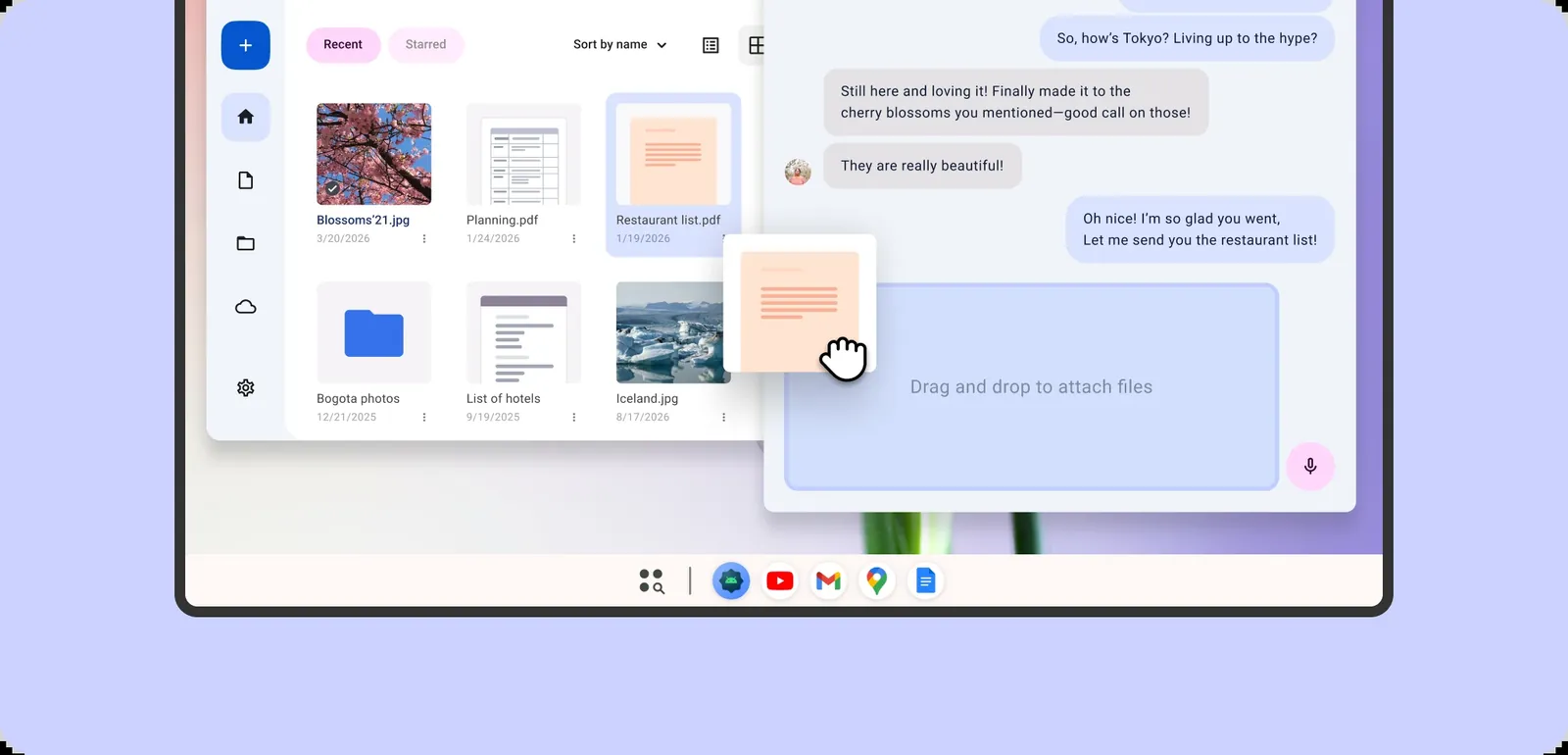
Drag and drop between windows is one of the desktop behaviors Google lists in its Tier 1 desktop guidelines. Image: Google, CC BY 4.0
5. Support multi-instance and drag and drop
Desktop users open two documents side by side. Google's multi-window guide shows the manifest setup for multiple instances:
<activity
    android:name=".EditorActivity"
    android:resizeableActivity="true"
    android:launchMode="singleInstancePerTask" />
Avoid singleInstance for any activity that should open more than once. Then add drag and drop in both directions: users should be able to drop an image from the Files app into your app, and drag content out of it into another window.
6. Ship x86-64 native code if you have any
Googlebooks come with Intel or Qualcomm processors, so some of them run x86-64. If your app or one of its SDKs ships native libraries (game engines, media codecs, ML runtimes, some database and crypto libraries), check that the bundle includes an x86_64 build. The Android ABI guide shows how to build both 64-bit ABIs:
android {
    defaultConfig {
        ndk {
            abiFilters += listOf("arm64-v8a", "x86_64")
        }
    }
}
Apps that only ship ARM code depend on translation on x86 machines, which costs speed and battery. Open your release bundle in Android Studio's APK Analyzer and look at the lib/ folder: if there is no x86_64 directory and there are .so files under arm64-v8a, you have work to do. Pure Kotlin or Java apps, and most React Native and Flutter apps built with default settings, are already covered, but verify rather than assume.
7. Add handoff with Continue On
Googlebooks are sold on how well they work with an Android phone. Google's Continue On feature "lets users start a task on one screen and pick up seamlessly on another", passing state through HandoffActivityData so a document position or open tab survives the move, with an optional web fallback. If your app has an obvious "continue where I left off" moment, such as a draft, an article, a cart or a video, this is cheap delight that matches Google's own marketing.
8. Test in the desktop emulator
Android Studio's desktop emulator lets you "test free-form window resizing, verify multi-instance interactions, and debug mouse, trackpad, and keyboard interactions" without buying a laptop. Run your top five user journeys in it with the window at three widths: narrow, half screen and full screen. Then do the same with only a keyboard.
Googlebook setup starts from the user's Android phone, and optimized apps are highlighted for transfer. Photo: Geri Tech / Pexels
Update your Play listing for large screens
The engineering work only pays off in search if Play and users can see it. Google's store listing guidance says that "for Chromebook and tablets, you can add a minimum of 4 screenshots", between 1,080 and 7,680 px, at 16:9 for landscape or 9:16 for portrait, and warns to exclude extra text "that can get cut off on Play homepages on certain screen sizes". It also notes that the large-format recommendation sections built from screenshots need at least four high-resolution screenshots to be eligible.
Our App Store screenshot sizes guide has the full Google Play table. Three listing changes to make this week:
- Upload real large-screen screenshots that show your two-pane layout, not a phone screen in the middle of a 16:9 frame.
- Mention desktop features in the description: keyboard shortcuts, multi-window, drag and drop, offline mode. Play's Ask Play feature and search read your description, as covered in our Google Play ASO in 2026 guide.
- Watch Android vitals by device type in Play Console after launch. The 8% per-device crash or ANR threshold is easy to hit on a new form factor if a crash only happens when a window is resized.
Make sure people can find your app beyond Play
Even with a good Play ranking, a new form factor is a news hook. A short changelog entry ("now works great on Googlebook, with keyboard shortcuts and multi-window") is worth posting wherever your users already hear from you, and it is a good moment to refresh your store listing copy. Expect a wave of reviews from new laptop users too, some of them about bugs you have never seen on a phone; our guide on how to respond to app reviews has reply templates for exactly that.
If you want a placement outside the store algorithm, you can also list your app on AppRanker, a pay-to-rank board for Android, iOS and browser extension listings where position is a plain sort on what each listing has paid. The post on how AppRanker ranking works explains exactly what a position buys. For broader free tactics, our playbook on how to promote your app for free is a good next read.
Googlebook app readiness checklist
- No orientation lock or fixed aspect ratio on screens of 600 dp or wider.
- Layouts switch on window size classes, tested while resizing.
- List-detail or supporting pane layout on wide windows.
- Full keyboard navigation with visible focus and Enter-to-submit.
- Standard shortcuts, hover states, right-click menus and scrollbars.
- Multi-instance enabled where users would want two windows.
- Drag and drop in and out of the app.
-
x86_64native libraries present if the app ships any.sofiles. - Continue On handoff for the main resumable task, if you have one.
- Top journeys tested in the desktop emulator at three widths.
- At least four large-screen screenshots on the Play listing.
- Android vitals checked by device type after the update.
Frequently asked questions
Do I need a separate app or build for Googlebook?
No. Google's post says developers do not need to build separate applications. Googlebooks install your existing app from Google Play. What you need is an adaptive version of that app: resizable, keyboard and mouse friendly, and not letterboxed.
Will my phone-only app still be available on Googlebook?
In most cases, yes, as long as your manifest does not require hardware a laptop lacks, such as telephony or a rear camera marked as required. Mark those features android:required="false" if your app can work without them. Whether users keep the app is another matter, which is why the layout work matters.
Does optimizing for Googlebook improve my Google Play ranking?
Google says optimized titles get "dedicated badging, enhanced search, and featured spots across curated store homepages", and that adaptive apps "rank higher and are more often selected for Editors' Choice." Google does not publish the size of the boost, so treat it as one ranking signal among many, alongside relevance, ratings and engagement.
What about Chromebooks?
Googlebook OS merges Android and ChromeOS and is set to replace consumer ChromeOS, while the education and enterprise versions continue (Wikipedia summary). Google's desktop quality guidelines already cover Googlebooks, Chromebooks and connected displays together. Work you do for one helps on the others.
My app crashes only on tablets. Does that affect Googlebook?
It can. Google's large-screen policy shows a warning on the details page for devices where the user-perceived crash or ANR rate reaches 8%. Resizing bugs, especially around configuration changes, are the usual cause. Fix those before you promote Googlebook support.
Image credits
- Cover, illustration of a laptop with app windows: image from Google's Android desktop design guide, Image: Google, CC BY 4.0. Cropped to 1200x630.
- Drag and drop between app windows: image from Google's Android desktop multitasking guide, Image: Google, CC BY 4.0. Resized.
- Android phone on a stand beside a laptop: photo by Geri Tech on Pexels, Pexels License. Resized.