- Google Play
- ASO
- Android
How to get your app recommended in Gemini and Ask Play: Google Play's October 2026 discovery update
How to get your app recommended in Gemini and Ask Play after Google Play's October 2026 update: AI app comparisons, Play in Gemini and a listing checklist.
AppRanker team11 min read
On this page
If you want to get your app recommended in Gemini or in Google Play's Ask Play, your store listing now has a second reader: an AI model that summarizes it, compares it with competitors and decides whether it answers a user's question. On October 13, 2026, Google Play announced that Ask Play can now generate side-by-side app comparisons in search results, and said that app discovery inside the Gemini app has already driven more than 6 million installs in the two months since launch.
This guide explains what changed, how these AI surfaces read your app, and a practical checklist to make sure your listing is described accurately, and favorably, when someone asks Gemini or Play for "an app like yours". Everything here comes from Google's own announcements and Play Console help pages, linked where they are quoted.
Key takeaways
- Ask Play comparisons summarize "your store listing and user reviews" when a user compares apps on things like subscription model or offline support.
- Play in Gemini matches a user's described need "to your store listing and key features", and now also works by voice through Gemini Live.
- Google's own checklist: keep the listing and promotional events fresh, upload high-resolution media, validate deep links, and integrate the Engage SDK where your category supports it.
- There is no separate "AI listing": the description, reviews and replies you already have are the raw material, so plain, specific facts beat slogans.
What Google Play announced on October 13, 2026
Google framed the update as the next chapter of its "More than a store" vision. The parts that matter for app discovery:
| Feature | What it does | Availability (per Google) |
|---|---|---|
| App comparisons in Ask Play | Generates side-by-side comparisons in search results, summarizing listings and reviews | Announced October 13, 2026 |
| Play in Gemini | Recommends apps inside Gemini conversations, with one-tap install | Over 6 million installs in two months; rolling out to all Gemini users "soon" |
| Gemini Live recommendations | The same app recommendations through voice conversations | Announced October 13, 2026 |
| Game finder | Explains why a game is recommended, based on each player's habits | English-language users in the US first |
| Community Posts | Questions and answers on a game's detail page | All games and languages; developer posts "over the coming weeks" |
| Play Console visual refresh | A redesigned Console | Rolling out in October 2026 |
The consumer side is described on Google's Keyword blog, which says Ask Play's comparison "highlights key differences and user sentiment" between apps.
None of this replaces classic store search. It sits on top of it. If you have not looked at Ask Play since it launched at Google I/O in May, our overview of Google Play ASO in 2026 covers the basics, including keyword-based custom store listings and the new reach metric.
How Ask Play and Gemini read your app
Google is unusually specific about the inputs. For Ask Play comparisons, the Android Developers Blog post says: "When a user compares details like subscription models or offline capabilities, Ask Play summarizes your store listing and user reviews to help them choose your app with confidence."
For Gemini, it says that when someone describes a need, "such as organizing family recipes or finding a collaborative task manager, Gemini matches their request to your store listing and key features, so they can evaluate and install your app with a single tap."
That gives you three inputs you control, fully or partly:
- Your store listing text: title, short description and full description.
- Your key features, as your listing and media present them.
- Your user reviews, which you cannot write but can influence through product fixes and replies.
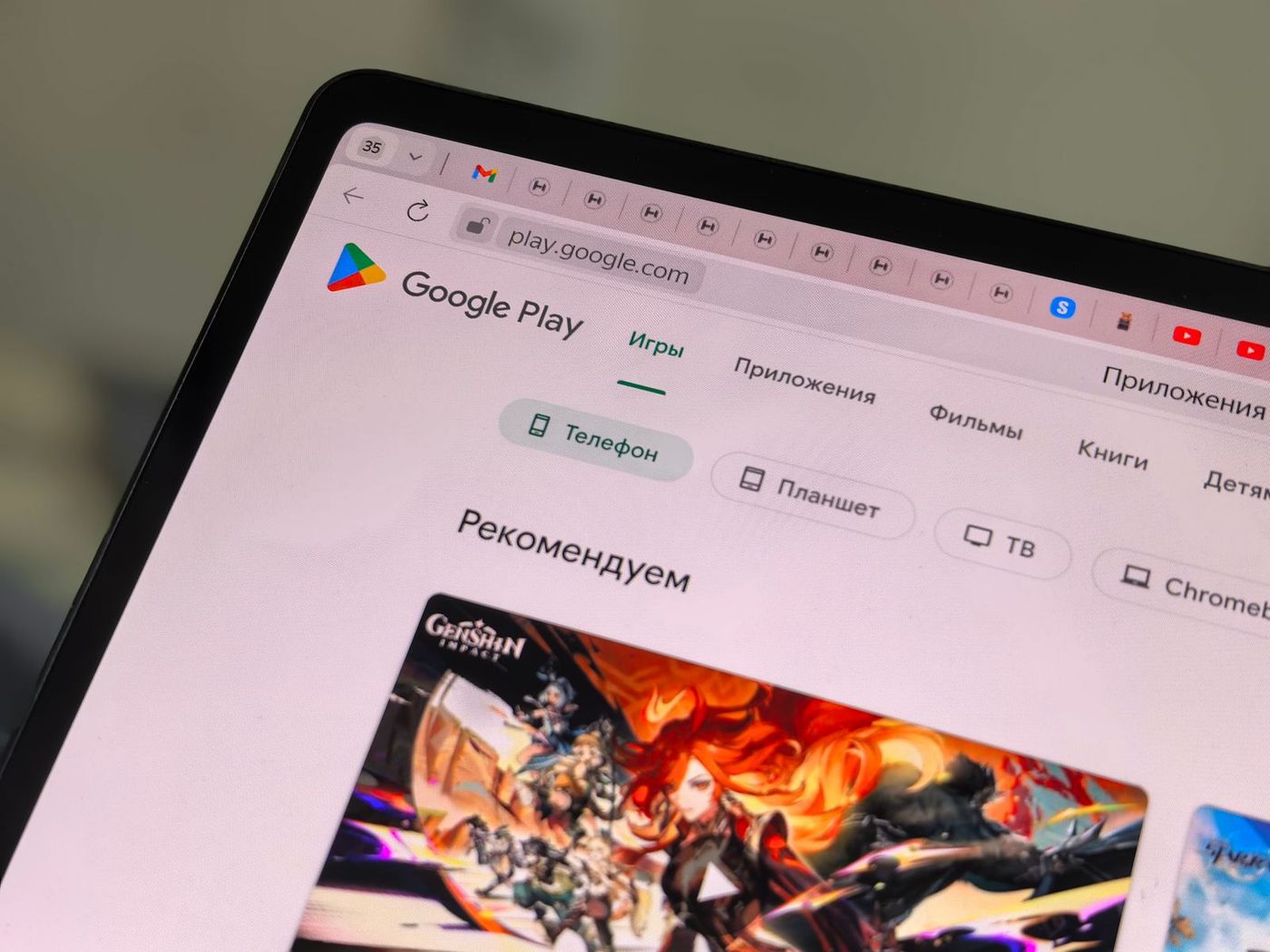
The same listing now feeds the store page, Ask Play summaries and Gemini recommendations, on phones, tablets and laptops. Photo: Andrey Matveev / Pexels
Why vague listings lose comparisons
A comparison needs facts it can line up. If a user asks "which of these works offline and has no subscription?", an AI summary can only answer for your app if your listing states it. A description that says "the smartest way to stay organized" gives the model nothing to compare; one that says "works fully offline, one-time purchase, syncs across Android phones and tablets" does.
The same logic applies to Gemini matching a described need. People describe problems in their own words ("an app to split rent with roommates"), so the listing that names the job, the audience and the constraints is the one that matches.
A listing checklist to get your app recommended in Gemini
Google published its own four-point checklist. Below, each point is expanded into steps you can do this week.
1. Keep your store listing and promotional events fresh
Google's advice: "Regularly update your descriptions, tags, and events in Play Console to highlight new features, seasons, and timely offers."
- Rewrite the first lines of your full description as facts. Lead with what the app does, who it is for, and the two or three constraints people filter on: price model, offline support, platforms, sign-up requirements.
- Add a short "what's included" list. Bullet points such as "Free: up to 3 projects. Pro: unlimited projects, export to PDF" are easy for a summary to quote.
- Check your tags. In Play Console, under Grow users > Store presence > Store settings, tags describe your app's content and function. Our guide to App Store and Google Play categories covers how to choose them.
- Plan promotional content. Offers, events and major updates in Play Console's promotional content tool give the store something timely to show. Eligibility is limited, so check whether your app has access.
- Stay inside the metadata policy. Google's Metadata policy bans "repetitive or unrelated keywords", store performance claims such as "#1" or "App of the year", and "unattributed or anonymous user testimonials" in the description. A listing written for AI readers is still a listing written for policy reviewers.
Here is a before and after for a hypothetical budgeting app:
Before:
"The best budgeting app! Take control of your money and reach your goals faster."

After:
"Track spending and shared bills with roommates or a partner.
- Works offline; syncs when you are back online
- Free for one budget; Pro adds unlimited budgets and CSV export ($2.99/month)
- No bank login required: add expenses manually or import a CSV
- Available on Android phones, tablets and Chromebooks"
The second version answers the comparison questions Google gives as examples, subscription model and offline capability, in the first five lines. Our guide to writing a store listing that converts covers the human side: the same clarity also lifts conversion on the store page itself.
2. Upload high-resolution media that works on every screen
Google asks developers to "use clean images and video previews that look great across different screen sizes and devices." That now includes cars, XR headsets and Googlebook laptops, where Google says "apps optimized for large screens are shown prominently."
- Provide tablet and large-screen screenshots, not only phone ones.
- Make the first screenshot state the main job in a few words.
- Keep text in images readable at small sizes, and avoid prices or ranking claims, which the metadata policy also restricts in images.
If your app is not ready for big screens yet, our Googlebook readiness checklist walks through the adaptive layout work.
3. Validate your deep links
Gemini's recommendations are not only about installs. At I/O, Google said Gemini would also "deep-link users into app content". In October, it pointed developers to Play Console's deep links tooling and a new built-in deep link emulator to "preview and test your links without needing a physical device."
The deep links page lives under Grow users > Deep links and shows:
- the domains declared in your manifest and your intent filters, grouped by path;
- your web URL coverage, including important crawled URLs on your verified domains;
- a Create patch option to add, turn off or fix deep links without releasing a new app version.
A quick way to check an Android App Link from your machine before you look at the Console:
# Ask Android to re-verify your App Links, then print the result per domain
adb shell pm verify-app-links --re-verify com.example.app
adb shell pm get-app-links com.example.app

# Open a specific link the way a recommendation would
adb shell am start -a android.intent.action.VIEW \
  -d "https://example.com/recipes/42" com.example.app
If get-app-links shows a domain as anything other than verified, check the assetlinks.json file on that domain. Our guide to Firebase Dynamic Links alternatives covers App Links and Universal Links setup in more depth.
4. Integrate the Engage SDK if your category supports it
The Engage SDK puts your app's content, such as continue-watching rows or personalized recommendations, on Google surfaces including Collections on the home screen, Apps Home and the You tab in the Play Store. Google's October post says it now supports nine categories, including Education and Health & Fitness.
Google's program page says integration "takes on average a week to implement" and adds "approximately less than 50KB" to the average APK. Users must have your app installed to see your content, so this is a re-engagement tool, not an acquisition one. Interest is expressed through a form on the program page.
Reviews are now part of your listing copy
Because Ask Play comparisons summarize "user sentiment", your reviews are effectively a section of your listing that you do not write. Three things help:
- Fix what reviews repeat. If ten reviews mention the same crash, a summary is likely to mention it too. Ship the fix, then say so in your release notes.
- Reply to recent negative reviews. Google says users "can update their rating or review at any time", and a useful reply gives them a reason to. Our guide on how to respond to app reviews has templates.
- Ask for ratings at the right moment. Use the in-app review flow after a success moment, not on first launch. On iOS, the equivalent decision is whether to reset your App Store rating after a major fix; Google Play has no reset, and its rating is weighted toward recent ratings.
Users now describe what they need in plain language, in Gemini, in Ask Play and in Google Search, and the answer is assembled from your listing. Photo: Shantanu Kumar / Pexels
What to do if you make a game
Most of the October announcements were for games, and they reward integration work:
- Game Stats: share basic gameplay events such as match completions or milestones, and your game can show daily Streaks and become eligible for Leagues and the new 48-hour Sprints for 2 to 5 players.
- Play Games Rewards: now generally available, for ongoing in-game rewards that sync with Play Points.
- Level Up program: Google says quality programs such as Level Up and the Apps Experience program "reward standout apps and games with lower service fees". Both are available in Australia, Japan, the EEA, the UK and the US, with Korea to follow by the end of 2026.
For Game finder, Google says recommendations draw on "gameplay habits, favorite mechanics, and community reviews". The same advice applies: clear genre and mechanics in your listing, and reviews that reflect the current build.
How to measure whether AI discovery is working
Google has not announced a separate Play Console report for Gemini or Ask Play traffic, so measure indirectly:
- Watch the reach metric and traffic sources in Play Console's store performance reports. Google introduced reach at I/O as a measure of "your app's total visibility on Play".
- Compare store listing conversion before and after you rewrite the description. Change one thing at a time, or use store listing experiments if you have the traffic.
- Track installs from links you control, so you can separate them from organic and AI-driven installs. Our guide on how to promote your app for free shows how to tag Google Play links with UTM referrers.
- Ask Gemini yourself. Describe the problem your app solves in a user's words and see which apps come back, and how yours is described. Repeat after each listing change.
Your checklist
- First five lines of the full description state the job, the audience, the price model and offline support.
- A short feature list separates free and paid features with real numbers.
- No ranking claims, keyword lists or anonymous testimonials.
- Tags and category match what the app actually does.
- Tablet and large-screen screenshots uploaded.
- App Links verified for every domain; deep links checked in Play Console.
- Engage SDK interest registered if your category is supported.
- Repeated complaints in recent reviews fixed and answered.
- A baseline of reach, conversion and installs recorded before the changes.
Beyond AI recommendations
AI surfaces reward apps that already have clear listings and healthy reviews, which makes them hard to crack for a brand-new app with neither. Outside traffic fills that gap while the store learns about you. Our guide on where to submit your app lists launch sites and directories worth the time, and on AppRanker you can list your Android or iOS app on a pay-to-rank leaderboard where the order is a plain sort on what each listing has paid, with every row linking straight to your Google Play or App Store page.
FAQ
How do I get my app recommended by Gemini?
Google says Gemini "matches their request to your store listing and key features." Write a listing that names the problem your app solves, who it is for and its key constraints, such as price model and offline support, keep it updated, and keep your reviews healthy. Google has not described any separate submission or opt-in for Play in Gemini.
What does Ask Play use to compare apps?
According to Google, Ask Play comparisons summarize "your store listing and user reviews" and highlight key differences and user sentiment, for example on subscription models or offline capabilities.
Is Play in Gemini available everywhere?
Google says it drove more than 6 million installs in two months and will roll out to all Gemini users soon, without a specific date. Game finder starts with English-language users in the US.
Can I see how many installs came from Gemini?
Google has not announced a dedicated report. Watch the reach metric and traffic sources in Play Console, and tag the links you control so you can separate them from organic installs.
Does keyword stuffing help AI recommendations?
No, and it can get your listing rejected. Google's Metadata policy bans "repetitive or unrelated keywords". Clear, specific facts are what a summary or comparison can actually use.
Image credits
- Cover, an Android phone with a Google apps folder: photo by Czapp Árpád on Pexels, Pexels License. Cropped to 1200x630.
- Google Play Store on a tablet: photo by Andrey Matveev on Pexels, Pexels License. Resized.
- Google search on a phone: photo by Shantanu Kumar on Pexels, Pexels License. Resized.