- Google Play
- ASO
- Android
Google Play ASO in 2026: Ask Play, keyword custom listings and the battery rule that hides apps
Google Play ASO in 2026: how Ask Play reads your listing, one-click keyword custom store listings, the new reach metric and the wake lock rule that hides apps.
AppRanker team10 min read
On this page
Google Play spent 2026 putting Gemini between users and your store listing. Users can now ask Play questions in plain language and get an AI answer before they ever open your page. Play Console can turn a search keyword into a tailored listing in one click. And since March, a battery metric that most developers had never looked at can quietly remove an app from Play's recommendations.
None of this replaces the basics of App Store Optimization (ASO) on Google Play. It does change which parts of your listing get read, by whom, and where. This post covers each change, what Google has actually said about it, and a checklist to work through before your next release.
What changed on Google Play this year
| Change | When | What it means for you |
|---|---|---|
| Excessive partial wake locks become a core vital with discovery consequences | Enforced from March 1, 2026 | Battery-hungry apps can lose recommendations and get a warning on their listing |
| Ask Play and Ask Play highlights | Announced at Google I/O, May 19, 2026 | An AI layer answers questions about apps using what your listing says |
| One-click custom store listings from keyword recommendations | Announced May 19, 2026 | Search keywords that bring you traffic can get their own tailored listing |
| New reach metric and Gemini chart descriptions in Play Console | Announced May 19, 2026 | A fuller view of how often your app is seen, not only how often the listing is opened |
| Gemini-assisted localization from a CSV or Google Sheet | Announced May 19, 2026 | Translated listings are faster to draft, and still need a human review |
All the May announcements come from Google's I/O 2026 post on what's new in Google Play. Some roll out gradually, so check your own Play Console before planning around a feature.
Ask Play: an AI reads your listing before users do
Google says its AI-powered Q&A on Play "already answers 95% of user queries". At I/O it built on that with Ask Play, an AI overlay that "turns discovery into a natural conversation", understands follow-up questions and recommends apps. Ask Play highlights add a short AI summary for complex searches directly on the search results page. Google also said it is bringing app discovery into the Gemini app on Android and the web.
The practical effect is that some users form an opinion of your app from an AI answer, not from your screenshots. Google has not published how Ask Play chooses what to say. ASO firms that have studied it, such as AppTweak, report that answers draw on the app's description and key features, and that features were limited to English-language devices at launch. Treat those as observations, not guarantees, but they point to the same advice.
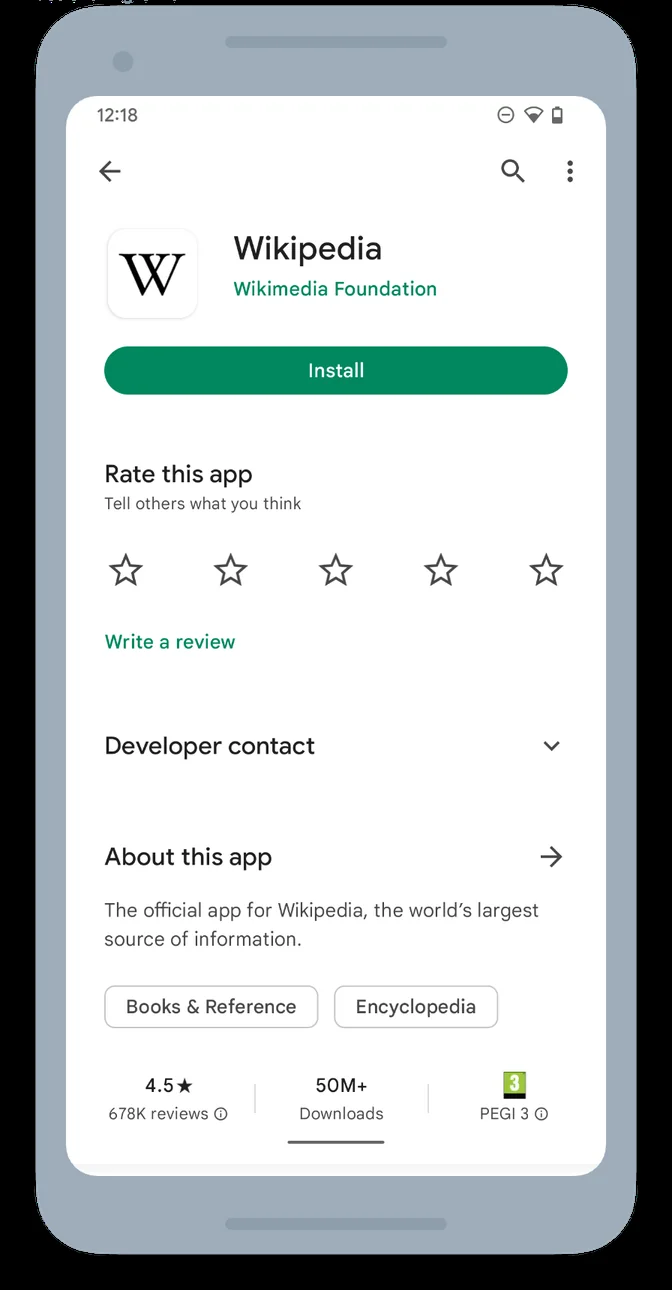
The first lines of "About this app" are what a person sees without tapping, and plain text that an AI summary can quote accurately. Image: RWambua-WMF, Wikimedia Commons, CC BY-SA 4.0
How to write a listing an AI can summarize correctly
- Lead with the job the app does. The first sentence of your full description should say what the app is for, in words a user would type into a search box. "Track habits and build daily streaks" beats "Your journey starts here".
- Name your main features explicitly. If your app works offline, supports a widget or has no ads, say so in words. An AI cannot infer a feature from a screenshot caption it may never see.
- Answer the questions people actually ask. Read your reviews and support email for repeated questions (price, sign-up, offline use, data export) and answer them in the description.
- Keep the facts consistent everywhere. If your website says one price and your listing another, any summary can pick the wrong one.
- Stay inside the metadata policy. Google Play's metadata policy caps the title at 30 characters, bans emojis and repeated special characters in the title, icon and developer name, and prohibits ranking or price claims such as "#1" or "Best of Play" there. It also rules out repetitive or unrelated keywords and anonymous testimonials in the description. Writing for AI answers is not a reason to start stuffing keywords.
Custom store listings from a search keyword, in one click
Custom store listings have existed for a while: you can create up to 50 and target them by country, by user segment such as churned or lapsed users, or by search keywords. With keyword targeting, you choose from the keywords known to bring you traffic, and people who arrive from those searches see that version of your listing. For each custom listing you can change the app name, icon, descriptions and graphics, while contact details, privacy policy and category are shared.
What changed at I/O is the effort involved. Google says that when you click a keyword recommendation on the Grow overview page, "Gemini creates a new custom store listing automatically tailored to that keyword—ready to deploy with just one click."
Google's help page describes keyword targeting as choosing which listing people see when they arrive from those searches, not as a ranking lever. So think of these listings as a conversion tool: they help you win more of the installs you are already close to getting.
Using it without losing control of your listing
- Start with your highest-traffic keywords that convert below average. Those are the searches where a better-matched listing has the most room to help.
- Treat the generated listing as a first draft. Check that every claim is true, that the tone matches your brand, and that it follows the metadata policy.
- Change the first screenshots, not only the text. Someone searching "budget planner" should see a budget screen first, even if your default listing leads with something else.
- Keep a list of which keyword maps to which custom listing, so two listings never compete for the same intent and you know what to update when the app changes.
- Measure before you multiply. Compare install conversion against the default listing for a few weeks before creating more.
The battery rule that can hide your app
This is the change most likely to hurt an app whose owners never heard about it. In November 2025, Google moved the excessive partial wake locks metric out of beta and made it a core vital, next to crash rate and ANR rate.
The definitions, from Google:
- A user session counts as excessive when cumulative, non-exempt partial wake lock use exceeds 2 hours in a 24-hour period.
- An app crosses the bad behavior threshold when more than 5% of its user sessions are excessive over 28 days.
From March 1, 2026, apps over the threshold may be excluded from "prominent discovery surfaces such as recommendations" and may show a warning on their store listing that the app may cause excessive battery drain. Google's March 2026 enforcement post walks through the common wake lock use cases and how to fix them.
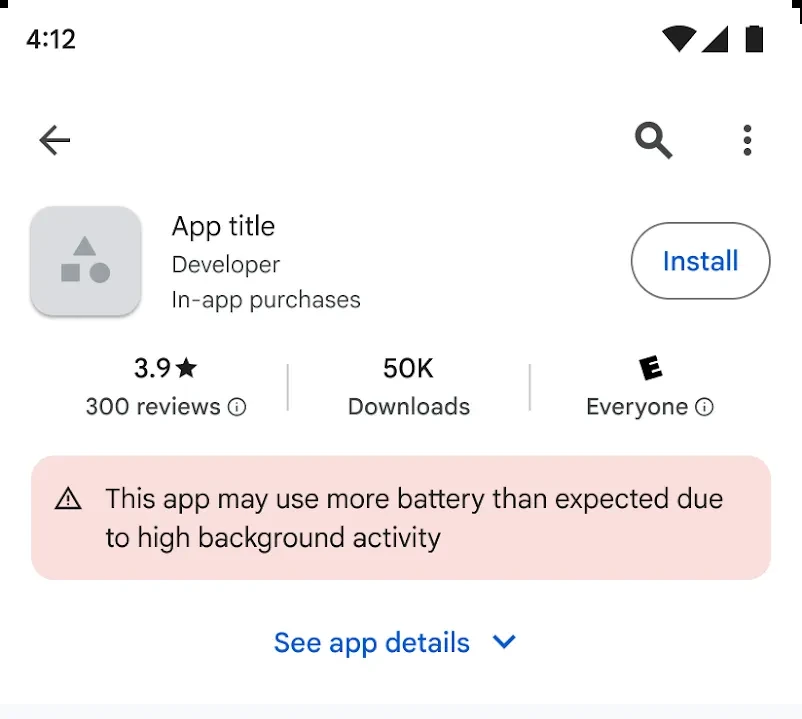
The warning sits right under the install stats, where every visitor reads it. Image: Google, from the Android Developers Blog, CC BY 2.5
That warning is an ASO problem as much as an engineering one: it lowers conversion on the traffic you still get, while the lost recommendations cut the traffic itself.
How to check yours in ten minutes
- In Play Console, open Android vitals and find Excessive partial wake locks among the core vitals. Check whether you are near or over the 5% threshold.
- Use the wake lock names table to see which tags hold wake locks longest. Give every wake lock a descriptive tag in your code so this table is readable.
- Reproduce locally. With a test device connected, this lists the wake locks currently held:
adb shell dumpsys power | grep -i -A 20 "wake locks"
- Replace long-held wake locks with the tools Google recommends: WorkManager for background syncs, the User-Initiated Data Transfer API for long uploads and downloads the user started (it is exempt from the calculation), sensor batching for sensor monitoring, and companion device pairing for Bluetooth.
- Acquire every wake lock with a timeout and release it in a
finallyblock, so an exception cannot leave it held:
val wakeLock = powerManager.newWakeLock(PowerManager.PARTIAL_WAKE_LOCK, "tidy:sync-upload")
wakeLock.acquire(10 * 60 * 1000L) // released automatically after 10 minutes at most
try {
    uploadPendingChanges()
} finally {
    if (wakeLock.isHeld) wakeLock.release()
}
Measuring what Play shows you: the new reach metric
Store listing conversion only tells you what happens after someone opens your page. Google says the new reach metric shows "your app's total visibility on Play", and that store listing performance now includes indirect value that was not previously reported. Gemini-written chart descriptions, first added to the Statistics page, now also appear on the Reach & Devices and Store Performance pages to point out trends.
Use it to separate two different problems:
- Low reach, healthy conversion: Play is not showing your app often. Work on keywords in your title and descriptions, your category, and your vitals.
- Healthy reach, low conversion: Play shows your app but people do not install. Work on the icon, the first screenshots, the first lines of the description and your rating.
Faster localization, with a human in the loop
Google says you can now upload a structured file, such as a CSV or a Google Sheet, and Gemini models will pre-populate your listings across languages for your review. That makes it cheap to cover markets you had been skipping. It does not make a machine translation a finished listing. Have a native speaker review at least the title, short description and first paragraph for each market that matters to you, because those carry the search keywords users in that language actually type.
Video on the listing
Apps that qualify for Play's premium growth tools can link a YouTube playlist to their listing, set up under Grow users, then Store presence, then YouTube videos. Games can link several playlists or channels. Videos must be public, owned by you, embeddable, not live, under 30 minutes and have monetization turned off, and they can also appear in the Apps or Games tabs. Separately, Google is rolling out Play Shorts, a full-screen short video feed, to users in the US and select developers first.
Your Google Play ASO checklist for fall 2026
Listing text
- Title within 30 characters, with no emojis, all caps or ranking and price claims.
- First sentence of the full description says what the app does, in search words.
- Main features named explicitly, and common user questions answered.
- Prices and claims consistent between the listing and your website.
Custom store listings
- High-traffic, low-conversion keywords identified.
- One custom listing per keyword intent, generated drafts reviewed by a person.
- First screenshots changed to match each keyword.
Technical quality
- Excessive partial wake locks checked in Android vitals, below 5%.
- Every wake lock tagged and released in a
finallyblock or with a timeout.
Measurement and reach
- Reach and conversion reviewed separately in Play Console.
- Machine-drafted translations reviewed by native speakers for key markets.
- Video playlist linked if you qualify.
Beyond Play's own ranking
Google Play decides its own order, and in 2026 that order increasingly runs through an AI layer you cannot see into. It helps to have somewhere to send people where the order is plain. On AppRanker, an Android app's rank is a plain sort on what each listing has paid, and each row links straight out to your Google Play page.
If you also distribute outside Play, our Android developer verification checklist covers the registration you need to stay installable. For the listing itself, our guide to writing a store listing that converts goes through the name, icon, description and screenshots in order, and you can paste your Google Play link on the home page to see what a place on the board costs today.
FAQ
What is Ask Play on Google Play?
Ask Play is an AI overlay Google announced at I/O in May 2026. Users ask questions in natural language, including follow-ups, and Play recommends apps. Ask Play highlights add a short AI summary of complex searches to the search results page.
Do keyword custom store listings improve my Google Play ranking?
Google describes keyword targeting as choosing which listing people see when they arrive from those searches, not as a ranking factor. Their value is conversion: a listing that matches the search intent turns more of those visitors into installs.
What is the excessive partial wake locks threshold?
A session is excessive when non-exempt partial wake locks are held for more than 2 hours in total within 24 hours. An app crosses the bad behavior threshold when over 5% of its sessions are excessive across 28 days.
What happens if my app exceeds the wake lock threshold?
Since March 1, 2026, Google Play may exclude it from prominent discovery surfaces such as recommendations and show a warning on its store listing that the app may cause excessive battery drain.
How long can a Google Play app title be?
30 characters. The metadata policy also bans emojis, repeated special characters, all caps (unless part of your brand) and ranking or price claims in the title, icon and developer name.
Image credits
- Cover, Samsung phone showing Google Play: photo by William Iven, originally on Unsplash, via Wikimedia Commons, CC0. Cropped to 1200x630.
- Wikipedia app Google Play listing: image by RWambua-WMF, via Wikimedia Commons, CC BY-SA 4.0. Cropped and resized.
- Battery drain warning on a Play listing: from Battery Technical Quality Enforcement is Here on the Android Developers Blog. Image: Google, CC BY 2.5.