- App Store
- Ratings
- iOS
App Store review prompt: SwiftUI, UIKit and timing rules
Add the App Store review prompt to an iOS app: SwiftUI and UIKit code to replace SKStoreReviewController, the yearly limit, when to ask and why it doesn't show.
AppRanker team11 min read
On this page
The App Store review prompt is the small system alert that asks people to rate your iOS app with one tap, and optionally write a review, without leaving it. It is the only kind of rating request Apple allows inside an app, and for most apps it is where nearly all new ratings come from. Getting it right matters for ranking: Apple's App Store search page says ratings and reviews "can influence how your app ranks in App Store search", and they appear in every search result.
The API has changed under many developers' feet. SKStoreReviewController, which most tutorials still use, is deprecated as of iOS 18. This guide shows the current SwiftUI and UIKit code, the rules the system applies, when to ask, how to test it, and why the prompt sometimes never appears.
Key takeaways
- Use
@Environment(\.requestReview)in SwiftUI orAppStore.requestReview(in:)in UIKit. Both need iOS 16 or later.SKStoreReviewController.requestReview(in:)is deprecated in iOS 18.- The system decides whether to show the alert. It appears at most three times in 365 days for someone who has not rated, and never on TestFlight builds.
- Ask after a success, not on launch or onboarding, and never from a button. For a "Rate us" button, link to your App Store page with
action=write-review.- Apple's guidelines forbid custom review prompts and forcing a rating to unlock anything.
- Track your own conditions (successes, days since install, last version asked) so the call happens at a good moment.
Which review API to use in 2026
Apple's documentation now lists three entry points. Only two are current:
| API | Framework | Availability | Status |
|---|---|---|---|
RequestReviewAction via @Environment(\.requestReview) |
StoreKit with SwiftUI | iOS 16, iPadOS 16, macOS 13, visionOS 1 | Current |
AppStore.requestReview(in:) with a UIWindowScene |
StoreKit | iOS 16, iPadOS 16, visionOS 1 | Current |
SKStoreReviewController.requestReview(in:) |
StoreKit | iOS 14 | Deprecated in iOS 18 |
All three show the same system alert and follow the same rules. If your app still supports iOS 15, keep the old call behind an availability check; otherwise move to the new ones and the deprecation warning goes away.
The rules the system applies
You request a review; StoreKit decides. Apple's documentation for RequestReviewAction states the policy:
- If the person has not rated or reviewed your app on this device, StoreKit shows the request at most three times within a 365-day period.
- If they have rated or reviewed it, StoreKit shows it again only if the app version is new and more than 365 days have passed since their last review.
- People can switch off review requests for every app on their device.
- In development builds, the alert always appears, so you can test it. In apps distributed through TestFlight, the call has no effect.
The call returns nothing, so you cannot tell whether the alert appeared or whether the person rated. That is by design, and it is why Apple warns: "Because this API may not present an alert, don't call it in response to a button tap or other user action." A button that sometimes does nothing looks broken.
Two App Review Guidelines also apply. Guideline 5.6.1 says to "use the provided API to prompt users to review your app" and that Apple "will disallow custom review prompts". Guideline 3.2.2(x) says apps "must not force users to rate the app, review the app ... in order to access functionality, content, or use of the app." Both are in Apple's App Review Guidelines.
When to ask for a review
The three prompts a year are a budget, and every one spent at a bad moment is a lost rating or a worse one. Apple's Human Interface Guidelines on ratings and reviews give the principles:
- Ask "only after people have demonstrated engagement", for example after completing a level or a significant task.
- Avoid first launch and onboarding, when people "haven't had enough time to gain a clear understanding of your app's value".
- Do not interrupt a task or a game; look for natural breaks.
- Do not pester. Apple suggests "at least a week or two between requests".
Turn that into concrete triggers for your app. Good moments share three traits: the user just succeeded, they are not in the middle of something, and they have used the app enough to judge it.
| App type | Good trigger | Bad trigger |
|---|---|---|
| Habit or fitness | Completing the 5th workout or a 7-day streak | Opening the app |
| Productivity | Exporting or sharing the 3rd finished document | Mid-edit, or after an error |
| Game | Finishing a level after the tutorial, on the results screen | During play, or after a loss |
| Shopping or travel | The order or booking confirmation screen | Checkout, or after a failed payment |
| Utility | The 10th successful scan, conversion or transfer | Any permission request screen |
Add two guards on top: wait a few days after the first real use, and ask at most once per app version. Apple's own sample project on requesting reviews does exactly this: it requires a process to be completed four times, stores the last version it asked on, and waits two seconds on the success screen before calling.
SwiftUI: the requestReview environment action
Keep the "is now a good moment" logic in one small type, so every screen asks the same question:
import Foundation

enum ReviewGate {
    private static var defaults: UserDefaults { .standard }
    private static let successesNeeded = 4
    private static let daysOfUseNeeded = 3.0

    /// Call this whenever the user completes your app's core task.
    static func recordSuccess() {
        if defaults.object(forKey: "review.firstSuccess") == nil {
            defaults.set(Date.now, forKey: "review.firstSuccess")
        }
        defaults.set(defaults.integer(forKey: "review.successes") + 1, forKey: "review.successes")
    }

    static var shouldAsk: Bool {
        let firstSuccess = defaults.object(forKey: "review.firstSuccess") as? Date ?? .now
        let daysOfUse = Date.now.timeIntervalSince(firstSuccess) / 86_400
        return defaults.integer(forKey: "review.successes") >= successesNeeded
            && daysOfUse >= daysOfUseNeeded
            && defaults.string(forKey: "review.lastVersionAsked") != currentVersion
    }

    static func recordAsked() {
        defaults.set(currentVersion, forKey: "review.lastVersionAsked")
    }

    private static var currentVersion: String {
        Bundle.main.infoDictionary?["CFBundleShortVersionString"] as? String ?? ""
    }
}
Then, on the screen that follows a success, read the environment action and call it after a short pause:
import StoreKit
import SwiftUI

struct WorkoutCompleteView: View {
    @Environment(\.requestReview) private var requestReview

    var body: some View {
        VStack(spacing: 16) {
            Text("Workout complete")
                .font(.title)
            // Your summary UI here.
        }
        .task {
            guard ReviewGate.shouldAsk else { return }
            // Let the person see their result before the alert appears.
            try? await Task.sleep(for: .seconds(2))
            await requestReview()
            ReviewGate.recordAsked()
        }
    }
}
.task is cancelled if the person leaves the screen within the two seconds, so the alert never lands on a screen they have already left. Call ReviewGate.recordSuccess() wherever the core task finishes, not in the view.
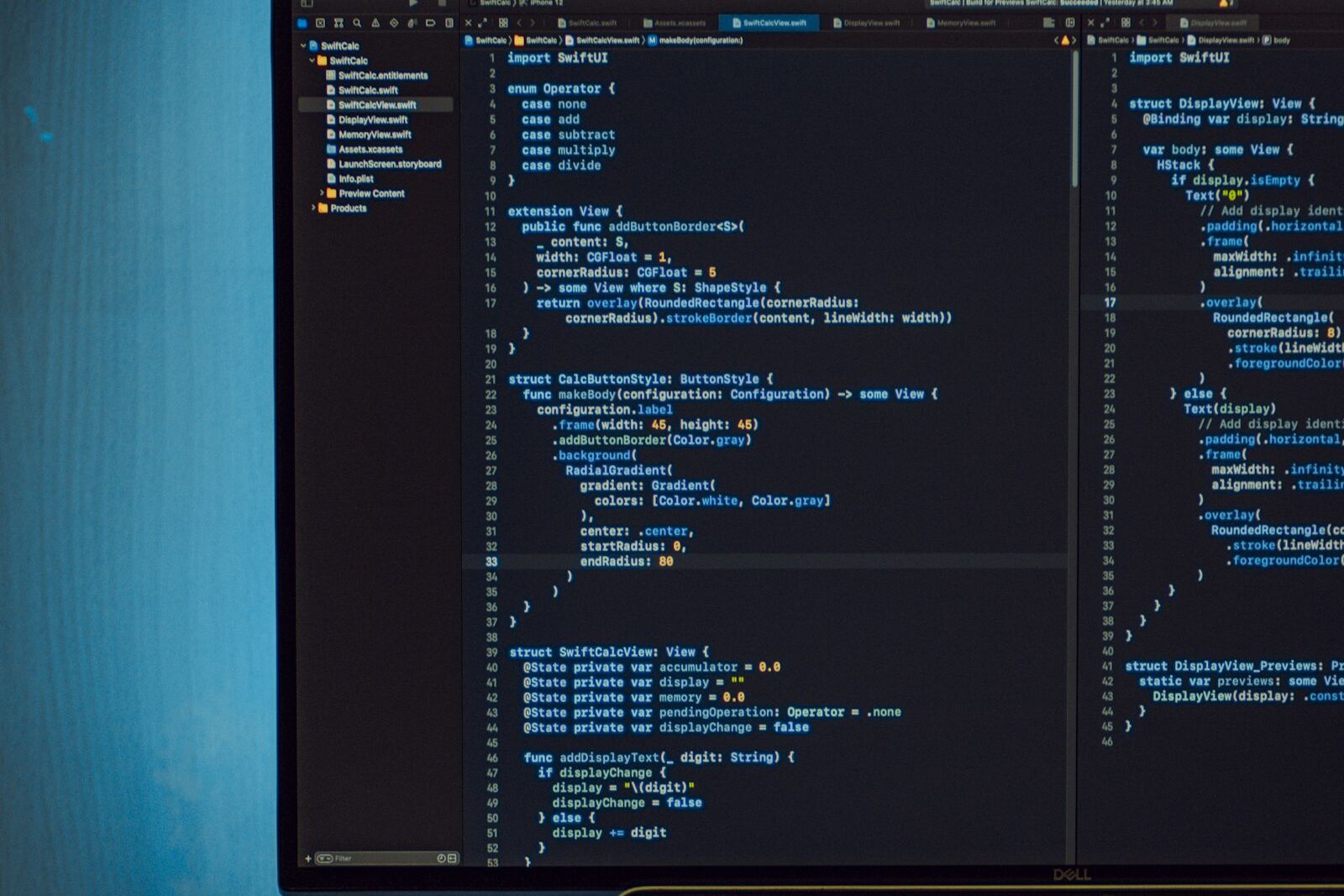
Keep the timing logic in one place and call the system prompt from the success screen. Photo: Safar Safarov / Unsplash
UIKit: AppStore.requestReview(in:)
In UIKit, pass the window scene of the view controller on screen. The call is main-actor isolated, and a Task started in a view controller already runs on the main actor:
import StoreKit
import UIKit

final class OrderConfirmationViewController: UIViewController {
    override func viewDidAppear(_ animated: Bool) {
        super.viewDidAppear(animated)
        guard ReviewGate.shouldAsk else { return }

        Task { [weak self] in
            try? await Task.sleep(for: .seconds(2))
            guard let scene = self?.view.window?.windowScene else { return }
            AppStore.requestReview(in: scene)
            ReviewGate.recordAsked()
        }
    }
}
If you still support iOS 15, wrap the call:
if #available(iOS 16.0, *) {
    AppStore.requestReview(in: scene)
} else {
    SKStoreReviewController.requestReview(in: scene)
}
React Native and Flutter
You do not need native code. The expo-store-review and in_app_review packages call the same system prompt on iOS and Google's in-app review card on Android, and the same rules apply: gate the call with your own conditions and never wire it to a button. Our guide to the Google Play In-App Review API has the code for both, along with Android's quotas, which differ from Apple's.
A "Rate this app" button that always works
Because the system prompt may not appear, a settings row or menu item that says "Rate this app" should open the App Store instead. Apple's documentation says to append action=write-review to your product page URL, which opens the page straight on the review form:
import SwiftUI

struct RateAppRow: View {
    @Environment(\.openURL) private var openURL
    // Replace with your numeric App Store ID, the number after "id" in your App Store URL.
    private let url = URL(string: "https://apps.apple.com/app/id1234567890?action=write-review")!

    var body: some View {
        Button("Rate this app") { openURL(url) }
    }
}
This does not use any of the three yearly prompts, so it is safe to show permanently in settings.
Why the review prompt is not showing
These are the causes behind most "requestReview does nothing" questions on Stack Overflow:
- It is a TestFlight build. The call has no effect there by design. Test in a debug build from Xcode, where the alert always appears, and trust the logic in production.
- The yearly limit is used up. Three requests in 365 days per device for someone who has not rated. If you call on every launch, the budget is gone in three days.
- The person already rated. They see it again only after a new version and 365 days.
- Review requests are switched off in the person's App Store settings.
- The scene is wrong or gone. In UIKit,
view.window?.windowSceneisnilbeforeviewDidAppearor after the view leaves the screen. - Your own gate never opens. Log
ReviewGate.shouldAskand the counters in a debug build; a condition that is never true is a common culprit.
You cannot detect any of these from code, because the API reports nothing back. That is another reason not to show your own "Did you enjoy the app?" screen first: it is the custom prompt guideline 5.6.1 rules out.
Most people will never see your prompt more than a few times a year, so each one has to land at the right moment. Photo: Atahan Demir / Pexels
After the ratings arrive
A good prompt brings in a steady flow of ratings, and with it more written reviews to deal with:
- Reply to reviews. Replies appear on your product page, and a reviewer can update their rating after a fix. Our guide on how to respond to app reviews has templates.
- Decide on a rating reset. When you release a new version, App Store Connect lets you reset the summary rating. Apple's guidelines say to weigh that against showing fewer ratings; our guide on whether to reset your App Store rating works through when it helps.
- Watch the effect on ranking and conversion. Compare ratings per week and product page conversion before and after the prompt ships. Our ASO audit checklist shows how to set that baseline and compare your ratings volume with the apps above you in search.
Ratings help, visibility still has to come from somewhere
Ratings make your listing convert and support your rank, but a new app with few installs has few people to prompt. Early on, most installs come from links you share outside the store. AppRanker is a pay-to-rank app leaderboard for App Store, Google Play and browser extension listings, an Outbid alternative with no account and no review queue: paste your store link, pay $5 at the time of writing, and your app gets a row on the board linking straight to its App Store page. Rank is a plain sort on what each listing has paid, and you can see what each position costs first. Every visitor it sends who installs and succeeds at something is one more person your prompt can ask.
For the bigger picture of what drives rank, see App Store ranking factors.
App Store review prompt checklist
-
RequestReviewAction(SwiftUI) orAppStore.requestReview(in:)(UIKit) in place ofSKStoreReviewController - Core success event counted, date of first success stored
- Prompt gated on several successes, a few days of use and a new app version
- Called from a success screen after a short pause, never on launch, onboarding or a button
- No custom "Do you like the app?" screen before the system prompt
- "Rate this app" row in settings using
action=write-review - Tested in a debug build, not TestFlight
- Review replies and rating trend checked weekly after release
FAQ
Is SKStoreReviewController deprecated?
Yes. SKStoreReviewController.requestReview(in:) is deprecated in iOS 18, iPadOS 18 and Mac Catalyst 18. Use RequestReviewAction from the SwiftUI environment or AppStore.requestReview(in:) in UIKit, both available from iOS 16.
How many times can I show the App Store review prompt?
You can call it as often as you like, but the system shows it at most three times in 365 days to a person who has not rated your app on that device. Someone who already rated sees it again only for a new version, after 365 days.
Why doesn't the review prompt show in TestFlight?
Apple disables it there: the call has no effect in apps distributed through TestFlight. In development builds run from Xcode, the alert always appears so you can check the timing and UI.
Can I find out if the user left a rating?
No. The API returns nothing and does not tell you whether the alert appeared or what was chosen. Track your own call count and watch ratings in App Store Connect instead.
Can I ask users if they like the app before showing the prompt?
Apple's guideline 5.6.1 says to use the provided API and that custom review prompts are disallowed. A screen of your own that asks for a rating, or filters who sees the real prompt, risks falling under that rule, so call the system prompt directly.
How do I link to the review page from a button?
Open your App Store URL with ?action=write-review appended, such as https://apps.apple.com/app/id1234567890?action=write-review. It opens the App Store on the review form and does not count toward the yearly limit.
Image credits
- Cover, hand holding an iPhone with app icons: photo by Luis Quintero on Pexels, Pexels License. Cropped to 1200x630.
- Swift code on a monitor and laptop: photo by Safar Safarov on Unsplash, Unsplash License. Cropped.
- Hand holding a smartphone in low light: photo by Atahan Demir on Pexels, Pexels License. Cropped.