- App Store
- Monetization
- iOS
App Store win-back offers: setup, eligibility and testing
App Store win-back offers explained: eligibility rules, App Store Connect setup, StoreKit and server code, sandbox testing and the Google Play equivalent.
AppRanker team14 min read
On this page
App Store win-back offers are free or discounted subscription offers that Apple shows only to people who used to subscribe to your app and then let it lapse. You choose who qualifies (how long they paid, how long ago they left), and Apple puts the offer in front of them: in your app on launch, on their Manage Subscriptions page, and, if you promote it, on your App Store product page and in App Store recommendations.
For a subscription app that is a rare thing: a re-acquisition channel that costs nothing to run and targets only people who already know the product. This guide covers how win-back offers work, the eligibility rules, the App Store Connect setup, the StoreKit and server code, how to test them in the sandbox, and what Google Play offers instead. Everything here comes from Apple's Set up win-back offers help page and the StoreKit guide Supporting win-back offers in your app.
Key takeaways
- A win-back offer is set per subscription product, not per group. Customers only qualify for offers on the product they most recently let lapse in each group.
- Eligibility uses three rules: minimum paid duration (1 to 24 months, or 3 to 5 years), time since last subscribed (1 to 24 months, minimum and maximum both required) and an optional wait between offers (2 to 24 months).
- You can create up to 350 win-back offers per subscription and run up to 5 at once per storefront.
- The in-app win-back sheet appears automatically on iOS 18 and later. You can suppress it with the StoreKit
MessageAPI.- To appear on the App Store you must promote the offer, which needs an approved subscription image and replaces any promoted In-App Purchases in that storefront.
How App Store win-back offers work
Apple defines a win-back offer as "a free or discounted offer for an auto-renewable subscription for eligible customers whose subscription is churned." Churned has a precise meaning in StoreKit: the subscription's expirationDate is in the past and willAutoRenew is false. Someone in a billing retry or grace period is not churned; for them, see our guide to the billing grace period.
Once you set up an offer, there are four places a lapsed customer can find it:
| Where | When it shows | Minimum OS |
|---|---|---|
| Manage Subscriptions page in their Apple Account | Automatically | iOS 14.3, iPadOS 14.3, macOS 14 |
| Win-back offer sheet in your app | Automatically at launch, unless you suppress it | iOS 18, iPadOS 18, macOS 15 |
| Your App Store product page, editorial selections and personalized recommendations | Only if you promote the offer | iOS 18, iPadOS 18, macOS 15 |
| A direct link you share (email, social, support replies) | Whenever you send it | Opens the App Store |
The App Store placement is the one that matters for discovery. Apple says promoted offers "may also appear in editorially curated selections and personalized recommendations across the App Store," which puts your app back in front of people who already know what it does.
Win-back offers sit alongside the other offer types. An introductory offer or free trial targets people who have never subscribed. Offer codes are for people you hand a code to. Win-back offers are the only type where Apple decides who is eligible from their subscription history, using the rules you set.
Eligibility rules and limits

Eligibility is mostly about time: how long someone paid and how long ago they left. Photo: Peter Olexa / Pexels
Each offer has three eligibility criteria:
| Criterion | What it means | Allowed values |
|---|---|---|
| Minimum Paid Duration | How long the customer must have been subscribed to that product | 1 to 24 months, or 3, 4 or 5 years |
| Time Since Last Subscribed | The window since their subscription ended | Minimum 1 month, maximum 24 months; both required |
| Wait Between Offers | How long after a win-back offer ends before they can redeem the same offer again | 2 to 24 months; optional |
Apple's own example: a minimum of 5 and a maximum of 11 months for Time Since Last Subscribed shows the offer only to customers who lapsed 5 to 11 months ago.
The limits and rules to plan around:
- Per product, not per group. A developer asked on the Apple Developer Forums whether a win-back offer on a yearly plan would reach lapsed monthly subscribers too. It will not: "Win-back offers are per-product," and customers are only eligible "on the most-recently-lapsed subscription product of theirs in each subscription group." If you sell monthly and yearly plans, create an offer for each.
- Volume. Up to 350 win-back offers per subscription, and up to 5 running at the same time per storefront per subscription. A monthly subscription with a 12-month commitment is limited to 5 active offers per storefront for that payment configuration.
- Timing. The earliest an offer can start is one day after you create it, and it must run for at least 3 days.
- Approval first. The subscription itself must be approved by App Review before you can attach a win-back offer.
- Overlaps. If several offers match the same customer, Apple "automatically selects and displays one offer" based on price, duration and things like the customer's paid tenure. Setting an offer to High Priority tells Apple which ones matter most to you.
- Family Sharing does not count. Apple's sandbox guide notes that access through Family Sharing does not make an account eligible; the account must have owned the subscription.
How to set up a win-back offer in App Store Connect
You need the Account Holder, Admin, App Manager or Marketing role.
- In Apps, select your app and click Subscriptions in the sidebar.
- Open the subscription group, then the subscription you want to win customers back to.
- In Subscription Prices, click the add button (+) and choose Create Win-Back Offer.
- Enter a reference name and an offer identifier. Neither can be changed later, and the identifier must be unique within the subscription group. It is what you will see in StoreKit transactions and Sales and Trends.
- Pick the date range (at least 3 days, starting tomorrow at the earliest) and the priority.
- Set the three eligibility criteria above.
- Choose the countries or regions. App Store Connect warns you if the new offer overlaps an existing one.
- Choose the offer type: Pay as you go, Pay up front or Free, then the duration and price.
- Review the generated prices for all 175 storefronts and adjust any you want. The price cannot be changed after you confirm.
- Click Confirm. App Store Connect generates a direct link in the format
https://apps.apple.com/win-back/<win-back offer Apple ID>.
Store the offer identifier and its direct link together on your server; you will need both later.
Promote the offer on the App Store
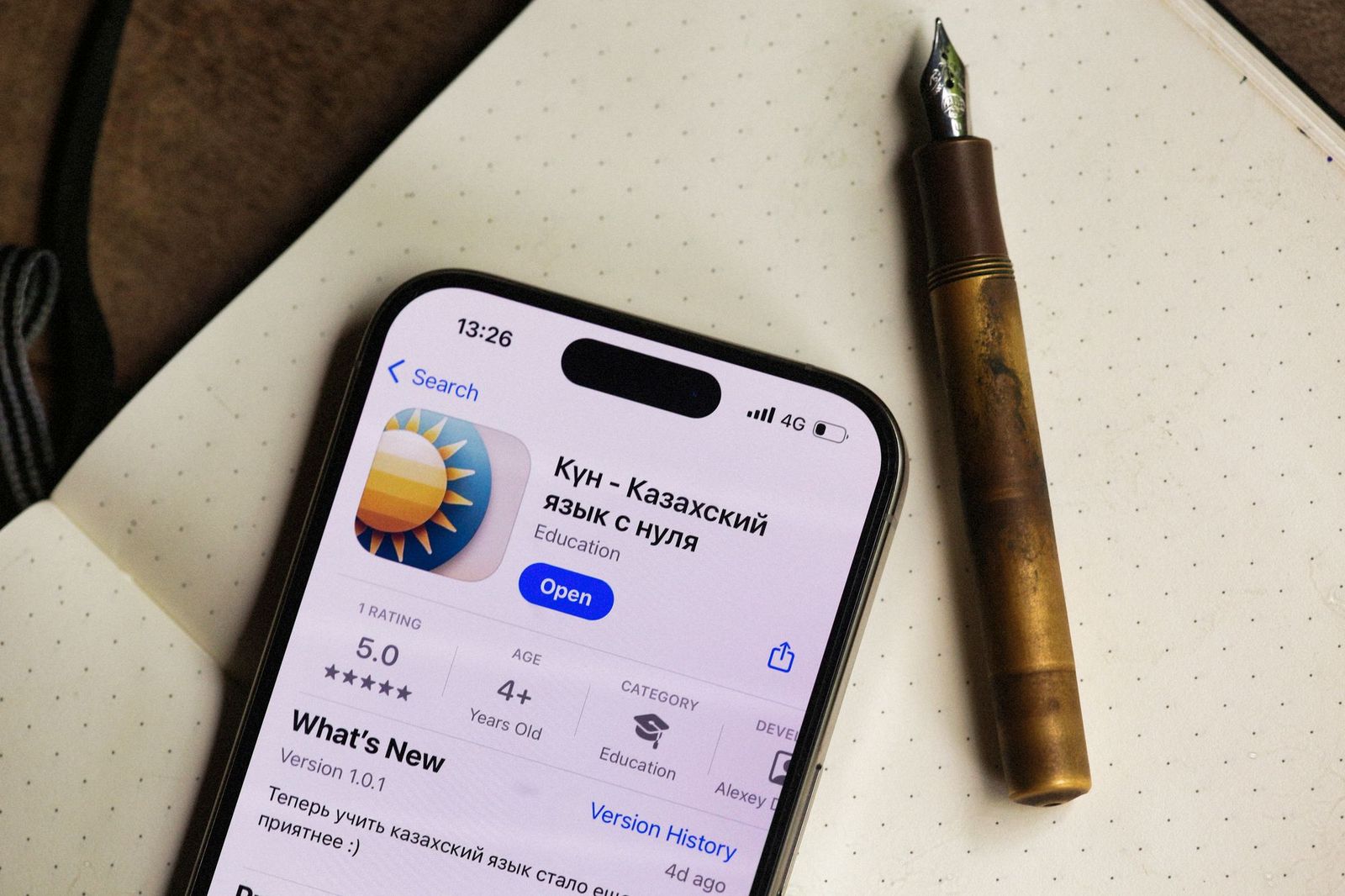
A promoted offer can appear on your product page and in App Store recommendations. Photo: Alexey Demidov / Pexels
An offer you do not promote still appears on the Manage Subscriptions page and in your app. To show it on the App Store as well:
- Make sure the subscription has an image approved by App Review. Apple displays it "on a win-back offer sheet alongside your app icon, subscription display name, and description," and it may not be the same as your app icon or any screenshot.
- Open the subscription, scroll to Promote on the App Store and click Promote Offer, then Promote.
One trade-off: promoting a win-back offer "will replace any In-App Purchase promotions in the same storefront." If you rely on promoted In-App Purchases for discovery, decide per storefront which promotion is worth more.
Handle win-back offers in your app with StoreKit
Most of the work is making sure a redemption made outside the app unlocks inside it. Photo: Nemuel Sereti / Pexels
Unlock redemptions made outside the app
Customers can redeem an offer on the App Store, through your direct link, from their Manage Subscriptions page or from the in-app sheet. With Streamlined Purchasing on (the default), every one of these completes outside your code and arrives as a finished transaction. Apple's guidance is to iterate Transaction.updates in a task that starts as soon as the app launches, and to check Transaction.currentEntitlements at launch for anything that happened while the app was closed. If you already handle purchases this way, win-back redemptions need no extra code.
If you turn Streamlined Purchasing off (for example, to make people log in first), your app receives a PurchaseIntent instead, and you complete the purchase yourself. Apple only lets you turn it off once your latest approved binary uses the PurchaseIntent API. Apple's example adds the offer to the purchase options:
var purchaseOptions: Set<Product.PurchaseOption> = []
if let offer = purchaseIntent.offer, offer.type == .winBack {
    purchaseOptions.insert(.winBackOffer(offer))
}
let result = try await purchaseIntent.product.purchase(options: purchaseOptions)
Control the automatic sheet
On iOS 18 and later, StoreKit shows a win-back offer sheet at launch when the App Store sends a winBackOffer message. To delay it (say, until after onboarding or a login screen) or replace it with your own design, listen to StoreKit.Message.messages and simply do not display that message. This is Apple's SwiftUI pattern:
struct RootView: View {
    @Environment(\.displayStoreKitMessage) private var displayStoreMessage

    var body: some View {
        ContentView()
            .task {
                for await message in StoreKit.Message.messages {
                    if message.reason != .winBackOffer {
                        try? displayStoreMessage(message)
                    }
                }
            }
    }
}
Show the offer on your own paywall
If you use SubscriptionStoreView, it already shows win-back pricing to eligible customers. When someone qualifies for several offers, the preferredSubscriptionOffer(_:) modifier lets you choose which one the view presents.
For a custom paywall, read two lists: eligibleWinBackOfferIDs on the customer's RenewalInfo (the App Store sorts it best offer first) and winBackOffers on the product's SubscriptionInfo. This function follows Apple's documented APIs and returns the best offer the customer can redeem for a product:
import StoreKit

@available(iOS 18.0, macOS 15.0, *)
func bestWinBackOffer(for product: Product) async throws -> Product.SubscriptionOffer? {
    guard let subscription = product.subscription else { return nil }
    for status in try await subscription.status {
        guard case .verified(let renewal) = status.renewalInfo else { continue }
        for id in renewal.eligibleWinBackOfferIDs {
            if let offer = subscription.winBackOffers.first(where: { $0.id == id }) {
                return offer
            }
        }
    }
    return nil
}
Pass the result to product.purchase(options: [.winBackOffer(offer)]) when the customer taps your button, then unlock and finish() the transaction as usual.
Know which renewals came from a win-back offer
In the app, a transaction's offer property has the type winBack. On your server, App Store Server Notifications V2 and the App Store Server API carry offerType 4 for a win-back offer, plus the offerIdentifier you chose. Store both on the subscription record so you can measure how many win-backs renew at full price later, which is the number that tells you whether the discount paid for itself.
Email the offer only to people who can redeem it
The direct link is useful in a lapsed-user email or a support reply, but a customer who is not eligible will open it and find nothing. Apple's advice is to check first: call Get All Subscription Statuses from your server and read eligibleWinBackOfferIds from each decoded renewal info payload.
This Node.js helper (Node 18 or later, no dependencies) turns that API response into a list of offers and links you can send. We ran it against a sample response with two eligible offers, and it returned both in Apple's order with the saved link attached:
// winback-eligibility.mjs
// Input: the JSON body of App Store Server API "Get All Subscription Statuses".
// Verify the JWS signatures (for example with Apple's App Store Server Library)
// before you trust these values in production.
function decodeJwsPayload(jws) {
  const payload = jws.split('.')[1];
  return JSON.parse(Buffer.from(payload, 'base64url').toString('utf8'));
}

export function eligibleWinBackOffers(statusResponse, links = {}) {
  const rows = [];
  for (const group of statusResponse.data ?? []) {
    for (const item of group.lastTransactions ?? []) {
      if (!item.signedRenewalInfo) continue;
      const renewal = decodeJwsPayload(item.signedRenewalInfo);
      for (const offerId of renewal.eligibleWinBackOfferIds ?? []) {
        rows.push({
          group: group.subscriptionGroupIdentifier,
          productId: renewal.productId,
          offerId,
          link: links[offerId] ?? null, // the direct link saved from App Store Connect
        });
      }
    }
  }
  return rows;
}
Send the first row's link. If the list is empty, the customer either is not churned yet or does not match any offer's rules, and the email should say something else.
How to test win-back offers
Apple supports two test setups: StoreKit Testing in Xcode, which does not need App Store Connect at all, and the sandbox. In the sandbox:
- On the device, open Settings > Developer > Sandbox Apple Account > Manage and keep Allow Purchases & Renewals on.
- Turn on Display Win-back Offer Sheet to test the automatic sheet, or off to test your own paywall.
- Make the account eligible: cancel any subscription in the same group, subscribe to the product with the offer, cancel it and wait for it to expire. A monthly subscription expires after 5 minutes in the sandbox by default. Then close the app.
- Launch the app. The sheet appears (if enabled), or your paywall can find the offer.
- To test a redemption from outside the app, use Test Transactions on the same settings page with the product ID, bundle ID and win-back offer ID, then launch the app and check that
Transaction.updatesdelivers it.
Three things trip people up. Metadata changes in App Store Connect can take up to an hour to reach the sandbox. An account with the subscription through Family Sharing is never eligible. And in TestFlight you can only test win-back offers through StoreKit views or your own code: the automatic sheet and App Store redemption are not available there.
Which offer to run first
Apple gives you the controls but not a playbook, so start narrow and measure. A reasonable first offer:
- Who: customers who paid at least 3 months and left 2 to 6 months ago. They liked the app enough to pay, and they have had time to miss it.
- What: a discounted first period (Pay up front or Pay as you go) rather than a free month, so the people who come back are choosing to pay again.
- Where: promoted on the App Store in your main storefronts, unless a promoted In-App Purchase is earning more there.
- Measure: win-back redemptions by
offerIdentifier, and how many of them renew at full price. Our guide to app retention rate covers the cohort view, and our App Store Connect analytics guide shows where to read subscription and retention numbers next to your traffic.
Then add a second offer for long-lapsed customers (12 to 24 months) with a deeper discount, and use High Priority on whichever performs better.
The Google Play equivalent
Google Play has no offer type called win-back. Its subscription guide describes three tools instead:
- Resubscribe in the Play Store. If enabled (it is by default), people can resubscribe to the same product for up to one year after it expires from the Play subscriptions center. It requires Play Billing Library 2.0 or later.
- Restore before expiry. While a cancelled subscription is still active, users can restore it with one tap. Supporting this is required for all developers.
- Developer-determined offers. In Play Console, an offer's eligibility can be Developer determined, which Google's help page says you can "limit an offer to past subscribers who have previously canceled with the aim of winning them back." Google does not check the rule for you, so these offers can only be purchased inside your app, and your app decides who sees them.
If your Google Play win-back offer includes a free trial, Google notes you must uncheck Allow one free trial per app or returning users will not get it. Each subscription can have up to 250 base plans and offers, with 50 active at once. If you are still moving to the current billing APIs, our Play Billing Library 8 guide covers the migration.
App Store win-back offers checklist
- Subscription approved by App Review
- One offer per product you want to win back, not one per group
- Eligibility windows chosen: minimum paid duration, time since last subscribed, wait between offers
- Offer identifier and direct link stored on your server
- Subscription image approved, and the offer promoted where it beats your promoted In-App Purchases
-
Transaction.updateslistener running from launch - Automatic sheet suppressed or delayed if it would interrupt onboarding or login
-
offerType4 andofferIdentifierstored for every redemption - Eligibility checked with Get All Subscription Statuses before sending any link
- Tested in the sandbox, including a redemption from outside the app
Win back subscribers, then win new ones
A win-back offer works on people who already found you. The next subscribers have to find you first. Outside the store, you can put your app on the AppRanker leaderboard, a pay-to-rank board for App Store and Google Play apps where rank is a plain sort on what each listing has paid and every row links straight to your App Store page. Paste your App Store link on the AppRanker home page to see what a position costs before you pay anything.
FAQ
What is a win-back offer on the App Store?
A free or discounted offer for an auto-renewable subscription that only lapsed subscribers can redeem. You set it up in App Store Connect with eligibility rules, and Apple shows it on the customer's Manage Subscriptions page, in your app and, if you promote it, on the App Store.
Who is eligible for an App Store win-back offer?
Customers whose subscription to that product has expired and will not auto-renew, who match your minimum paid duration and time-since-last-subscribed rules, and who have not redeemed the same offer within your wait-between-offers window. Access through Family Sharing does not qualify.
Do win-back offers work for all products in a subscription group?
No. They are configured per product, and customers are only eligible for offers on the product they most recently let lapse in each group. Create a separate offer for each plan you want to win back.
Why is my win-back offer not showing?
Check that the test account owned the subscription and that it has fully expired, that no other subscription in the group is active, and that the device runs iOS 18 or later for the sheet. App Store Connect changes can take up to an hour to reach the sandbox, and TestFlight does not show the automatic sheet at all.
How many win-back offers can I create?
Up to 350 per subscription, with no more than 5 running at the same time per storefront.
Does Google Play have win-back offers?
Not as a separate offer type. Use resubscribe and restore in the Play subscriptions center, plus offers with Developer determined eligibility that your app shows only to past subscribers.
Image credits
- Cover, a hand holding a bank card and a phone: photo by Tima Miroshnichenko on Pexels, Pexels License. Cropped to 1200x630.
- Planning in a paper calendar beside an iPhone: photo by Peter Olexa on Pexels, Pexels License. Cropped to landscape and resized.
- App Store product page on an iPhone: photo by Alexey Demidov on Pexels, Pexels License. Resized.
- Code on a laptop in a dark room: photo by Nemuel Sereti on Pexels, Pexels License. Resized.