- ASO
- App Store
- Google Play
App preview video: how to plan, record, export and upload one for the App Store and Google Play
App preview video guide for 2026: Apple's specs and rules, a 30-second storyboard, recording and ffmpeg export commands, upload errors and Google Play's video.
AppRanker team11 min read
On this page
An app preview video is the short clip that plays at the top of your App Store product page, before a single screenshot. On Google Play the equivalent is a YouTube promo video that sits in front of your screenshots. Both autoplay without sound, both can appear in search results, and both are the first moving thing a potential user sees.
They are also easy to get wrong: a file a few pixels off, a missing audio track or a video that shows a logo for ten seconds. This guide covers what each store requires in 2026, how to plan a 30-second story, how to record and export a file Apple accepts on the first try, how to fix the upload errors developers hit most, and how to tell whether the video helps at all.
Key takeaways
- App Store previews are 15 to 30 seconds, up to 3 per device size and language, 886 x 1920 for current iPhones, H.264 or ProRes 422 HQ, at most 30 fps.
- They may only show screen captures of the app, autoplay muted, and must not include prices, hands or seasonal references.
- Google Play takes one YouTube URL. Ads must be off, the video public or unlisted, and only the first 30 seconds autoplay.
- Always include an audio track, even a silent one, and export at a constant 30 fps.
- Test the video. Apple's own case study shows a page without a video winning.
Where an app preview video appears
On the App Store, Apple says previews "display and autoplay on your product page and within search results, and they can be used in Apple Ads." You can have "up to three app previews for each language your app supports," and they "always appear before screenshots on iPhone, iPad, Mac, and Apple TV," even if you reorder them in your app record. A preview in a different aspect ratio from your screenshots moves to the "A Closer Look" section instead.
On Google Play, your preview video "is displayed before your screenshots" and plays when people tap the button over your feature graphic. Google adds that it "may autoplay inline with muted audio up to 30 seconds" and may appear on the home and search pages too. Your 1024 x 500 feature graphic doubles as the video's cover image.
In both stores, the most common viewing condition is a muted autoplay on a phone. Design for that.
App Store app preview specs
Apple's app preview specifications set these limits:
| Spec | Requirement |
|---|---|
| Length | 15 to 30 seconds |
| File size | Up to 500 MB |
| Format | .mov, .m4v or .mp4 (H.264), or .mov (ProRes 422 HQ) |
| H.264 settings | 10 to 12 Mbps target, progressive, up to High Profile Level 4.0 |
| Frame rate | Up to 30 frames per second |
| Audio | Stereo, 256 kbps AAC (or PCM for ProRes), 44.1 or 48 kHz |
| iPhone (all current models, including iPhone Duo) | 886 x 1920 portrait or 1920 x 886 landscape |
| iPad | 1200 x 1600 portrait or 1600 x 1200 landscape |
| Default poster frame | 5 seconds in |
| Processing | Up to 24 hours after upload |
Note the gap between device resolution and accepted resolution. An iPhone 17 Pro screen recording is 1206 x 2622, but App Store Connect wants 886 x 1920. Apple explains that because most previews come from screen recordings, it "accepts a defined set of standard portrait or landscape resolutions per display size instead of requiring an exact per-device match." If your UI is the same across sizes, upload the largest required size and it scales down for smaller devices. Our App Store screenshot sizes guide has the matching screenshot tables.
What Apple allows in a preview
App Review Guideline 2.3.4 is short: "previews may only use video screen captures of the app itself," and you "can add narration and video or textual overlays to help explain anything that isn't clear from the video alone." Apple's app previews page adds the details reviewers check:
- Stay within the app. "Don't film people interacting with a device, such as an over-the-shoulder angle or fingers tapping the screen." Graphic touch hotspots are fine.
- Appropriate for all ages, even if your app is rated higher. Guideline 2.3.8 applies the 4+ standard to icons, screenshots and previews.
- No prices and nothing that ages. Apple says to avoid "seasonal or timely references," such as "new for spring," and not to include specific prices, because "pricing and currencies vary across regions."
- Disclose purchases. If a feature shown needs an in-app purchase, a subscription or a login, say so in the footage or the end frame.
- Licensed content only. Music, film clips and trademarked characters need rights for marketing use in every territory.
- Honest transitions. Use dissolves and fades, and avoid transitions that "imply functionality that your app doesn't include."
Plan a 30-second story
Because previews autoplay muted, the first three seconds have to work without sound or context. Apple recommends that your first preview "share an overview of your app experience," with later previews each showing "something new." A structure that fits the 30-second limit:
| Seconds | Show | On-screen text |
|---|---|---|
| 0 to 3 | The single most impressive result your app produces, already on screen | The benefit in five words or fewer |
| 3 to 12 | The core task from start to finish, at real speed | One short caption per step |
| 12 to 22 | Two or three secondary features, one quick cut each | A label per feature |
| 22 to 28 | The outcome: the finished list, the edited photo, the streak | A plain summary line |
| 28 to 30 | App name and icon; purchase disclosure if needed | "Subscription required for X", if it applies |
Skip the logo intro. Google's guidance for Play videos makes the same point: show "the actual in-app or in-game experience, focusing on the core features and content as early as possible within the first 10 seconds," and "aim for at least 80% of the video to be representative of the user experience."
Record clean footage
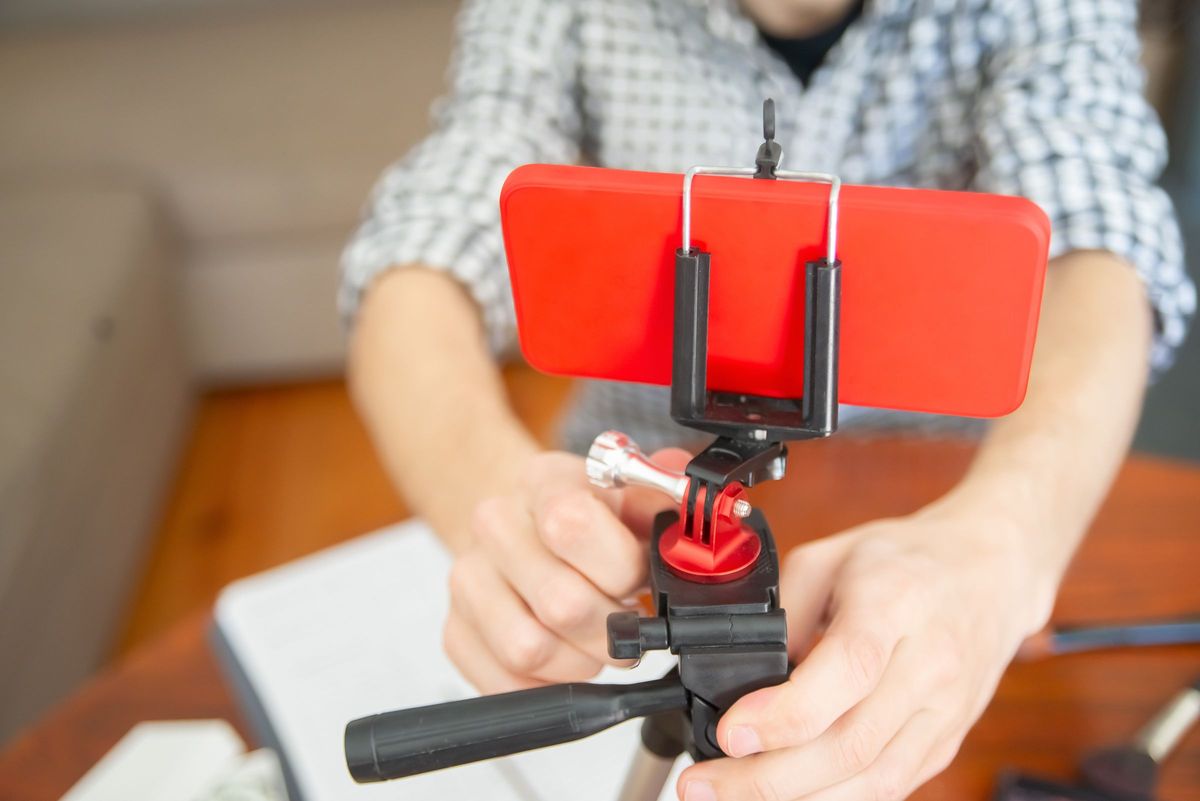
Filming the screen with a camera breaks Apple's rules; capture the screen itself. Photo: Kampus Production / Pexels
Apple suggests capturing "app footage from the device using QuickTime Player on macOS simply by connecting your device to a Mac." The Simulator is often easier, because you can set a clean status bar and replay a flow until it is smooth:
# Clean status bar: 9:41, full battery and signal
xcrun simctl status_bar booted override --time "9:41" \
  --batteryState charged --batteryLevel 100 --cellularBars 4 --wifiBars 3

# Record the booted simulator; press Ctrl+C to stop
xcrun simctl io booted recordVideo --codec=h264 raw-iphone.mov
On Android, adb records the device screen; the default limit is three minutes per clip:
adb shell screenrecord --bit-rate 12000000 /sdcard/raw-android.mp4
adb pull /sdcard/raw-android.mp4
Before you record, load the app with realistic, fictional data. Guideline 2.3.9 asks you to "display fictional account information instead of data from a real person," and an empty state is the least convincing frame in any video.
Export a file App Store Connect accepts
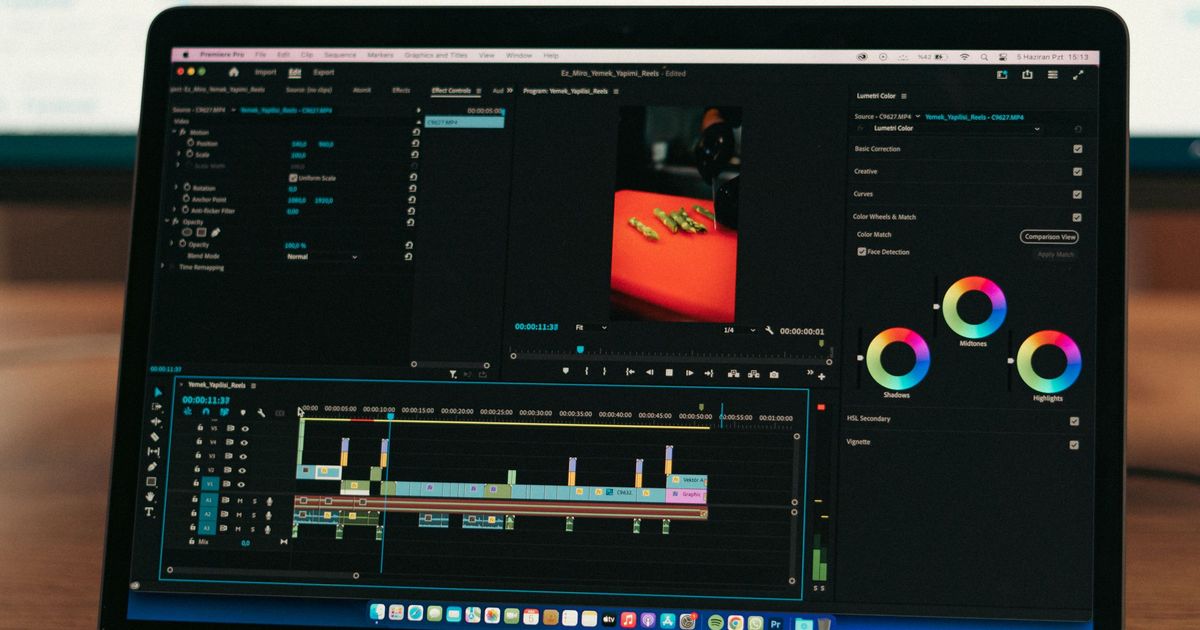
Cut the story in any editor, then conform the final file to Apple's exact specs. Photo: Abdulkadir Emiroğlu / Pexels
Edit in iMovie, Final Cut Pro or any editor, then conform the export. This ffmpeg command takes an edited portrait iPhone video, fits it to 886 x 1920, forces a constant 30 fps, encodes H.264 High Profile Level 4.0 at about 11 Mbps and adds a silent stereo AAC track:
ffmpeg -i edit.mov \
  -f lavfi -i anullsrc=channel_layout=stereo:sample_rate=48000 \
  -map 0:v:0 -map 1:a:0 \
  -vf "scale=886:1920:force_original_aspect_ratio=decrease,pad=886:1920:(ow-iw)/2:(oh-ih)/2,fps=30,format=yuv420p" \
  -c:v libx264 -profile:v high -level:v 4.0 -b:v 11M -maxrate 12M -bufsize 24M \
  -c:a aac -b:a 256k -ar 48000 -ac 2 \
  -shortest -movflags +faststart preview-886x1920.mp4
If your edit already has music or narration, replace -map 1:a:0 with -map 0:a:0 and drop the anullsrc input. For iPad, use 1200:1600 in both places. Then confirm the result before uploading:
ffprobe -v error -show_entries stream=codec_name,profile,width,height,r_frame_rate,sample_rate,channels \
  -show_entries format=duration -of compact preview-886x1920.mp4
You want h264 at 886 x 1920 and 30/1, an aac stream at 48000 Hz with 2 channels, and a duration between 15 and 30 seconds.
Upload, set the poster frame and fix common errors
In App Store Connect, open your app version, go to Product Page Information > App Previews and Screenshots, pick the device tab, and drop the file in. You can upload previews while the version is in Prepare for Submission, or after a rejection. Apple's newer Asset Library also lets you "upload and submit images and videos on their own, independent of an app version," and reuse them for custom product pages.
Set the poster frame on purpose. It is what people see when autoplay is off, and Apple warns that changing it on an approved preview means submitting "a new version of your app preview."
The upload problems developers report most:
- "Your app preview contains unsupported or corrupted audio." App Store Connect expects an audio track. Simulator recordings have none, so add a silent one, as iOS developer Sarunw explains in his write-up of this error. The export command above already does this.
- Stuck in processing. Processing can take up to 24 hours. In one Apple Developer Forums thread from March 2026, a developer's upload was still stuck after a day; the specs they listed included a frame rate of about 28.9 fps rather than a constant 30. The thread has no confirmed cause, but forcing a constant frame rate on export, as the command above does, is a sensible first check.
- Wrong resolution. Use the accepted resolution (886 x 1920), not your device's native one.
- Length. Anything under 15 or over 30 seconds is refused.
Google Play's preview video
Google Play does not take a file. You add one YouTube URL under Grow users > Store presence > Main store listing > Graphics. Google's preview assets help lists the requirements:
- Turn ads off. Disable monetization, or upload a version without monetization claims. Copyrighted music can attach ads even then.
- Public or unlisted, never private, not age-restricted, and embeddable.
- A plain video URL. Not a playlist or channel, and no timecode parameters.
- Either orientation, no black bars. Portrait and landscape both work, but "do not leave black bars on either side of a portrait video."
- Keep it short. "Only the first 30 seconds autoplays."
- No store claims in captions. No "Best," "#1," "Top," "New," "Discount" or "Million Downloads," and no "Download now" calls to action.
Google also recommends captions, localized videos for major markets, and pairing the video with a strong feature graphic. You can usually reuse your App Store cut, but upload a 9:16 or 16:9 version to YouTube rather than the 886 x 1920 file, and re-check it against the "no black bars" rule.
Does a preview video help? Test it
Video is not automatically better. Apple's product page optimization page describes a Simply Piano test where the hypothesis was that a preview "as the first asset on the product page will result in higher conversion," and "the original product page without an app preview video outperformed the treatment."
On the App Store, run the video as a product page optimization treatment against your current page; tests can run up to 90 days. Google's store listing experiments cover the icon, feature graphic, screenshots and descriptions, so on Play compare store listing conversion for a few weeks before and after you add the video, keeping everything else unchanged. Our App Store A/B testing guide covers both tools, and App Store Connect analytics shows where to read conversion on iOS.
If you already use Apple's new creative assets for search results, read our post on App Store search in 2026: Apple says it falls back to events, previews and screenshots when no search results asset is provided.
Put the finished page in front of people
A good preview raises conversion, but it only works on the people who reach your page. AppRanker is one more way to send them there: the pay-to-rank app leaderboard lists apps by what each listing has paid, and every row links straight to the App Store or Google Play page your new video plays on. Paste your App Store or Google Play link on the AppRanker home page to see what each position costs today. If you are also refreshing your icon, our guide to app icon size and design covers the 2026 specs, and getting featured on Google Play explains how Google's editors use your video and graphics.
App preview video checklist
- Storyboard: core result in the first 3 seconds, core task by second 12, no logo intro.
- Only screen captures of the app, fictional data, clean status bar, no hands.
- Captions readable on mute; no prices, dates or seasonal references.
- Purchase or login requirement disclosed if shown.
- 15 to 30 seconds, 886 x 1920 (iPhone) or 1200 x 1600 (iPad), constant 30 fps.
- H.264 High Profile, about 10 to 12 Mbps; stereo AAC audio track present, even if silent.
- Poster frame chosen deliberately.
- Google Play: YouTube URL, ads off, public or unlisted, embeddable, no black bars.
- Video tested against the page without it.
FAQ
What is the app preview video size for iPhone?
886 x 1920 pixels in portrait or 1920 x 886 in landscape. Apple accepts that resolution for every current iPhone class, including iPhone Duo and Dynamic Island models, even though the devices' screens are larger.
How long can an App Store preview video be?
Between 15 and 30 seconds. You can upload up to three previews per device size and language, and each must be at most 500 MB and 30 frames per second.
Why does App Store Connect say my app preview has corrupted audio?
App Store Connect expects an audio track in stereo AAC or PCM. Screen recordings from the iOS Simulator have no audio, so add a silent stereo AAC track, for example with ffmpeg's anullsrc source, and upload again.
Can I show hands or a phone in my app preview?
No. Apple says not to film people interacting with a device, such as fingers tapping the screen. Previews may only use screen captures of the app, with optional overlays such as touch indicators, captions and narration.
Do I need a preview video for Google Play?
It is optional, but Google highly recommends one, especially for games: Google says a game "requires a preview video to be shown in certain parts of Google Play." You add it as a YouTube URL with ads turned off.
Do app preview videos increase downloads?
Sometimes. Apple's own product page optimization case study describes a page without a video beating the version with one. Run a product page optimization test on the App Store, and compare conversion before and after on Google Play, before assuming either way.
Image credits
- Cover, video editing software on a laptop: photo by Muhammed Çetinkaya on Pexels, Pexels License. Cropped to 1200x630.
- Mounting a phone on a tripod: photo by Kampus Production on Pexels, Pexels License. Resized.
- Video editing timeline close-up: photo by Abdulkadir Emiroğlu on Pexels, Pexels License. Resized.